Creating a SharePoint Statement of Governance

Courtesy of the Burton Group.

Everything from maintenance to politics described as “governance”, but what is it really? What is the list of topics that should go into a web statement of governance that doesn’t overlap with what is already in maintenance and administrator’s manuals? Burton Group to the rescue! This poster provides a handy reference on how to create a SharePoint statement of governance (SOG). It is about 2.5 by 3.5 feet when printed and is the perfect companion to our Methodologies and Best Practices document “Website Governance: Guidance for Portals, SharePoint, and Intranets”.
And best of all, the poster is free for download! Just click on the link to register and then download the file. It is suitable for printing on a large format printer or just scanning online. Download Poster

HP Sizer For Microsoft SharePoint 2010

HP Sizer for Microsoft SharePoint is a complimentary planning resource that encapsulates knowledge gained from extensive performance characterization of Office SharePoint Server 2007 and SharePoint 2010 in the HP Alliances Performance and Solutions labs, widespread collaboration between HP and Microsoft, and numerous SharePoint performance whitepapers produced by HP engineering.

A new feature of this sizer is to configure the server requirements for a highly available Hyper-v R2 environment.

Get it from http://h71019.www7.hp.com/activeanswers/Secure/548230-0-0-0-121.html

Configuring My Site in SharePoint 2010


SharePoint My Sites are commonly referred to as “Facebook for the enterprise” and are personal site collections providing each user with the ability to store private and public information such as documents, pictures, status updates, etc easily and efficiently.  My Sites in SharePoint 2010 takes social enterprise computing to the next level and builds upon what we have come to love in previous versions.  Microsoft saw the need to continue to invest and enhance SharePoint’s social networking capabilities, and as web 2.0 technologies continue to sprawl all over the world wide web, Microsoft have again successfully set the bench mark in the enterprise by introducing an array of social computing features to enhance end user collaboration in SharePoint 2010.

Create the My Site Web Application

We begin by first creating a Web Application that will eventually house our My Site Host and subsequent site collections.

Navigate to Central Administration / Application Management / Web Applications

Click New

image thumb Configuring My Site in SharePoint 2010

Authentication: Select either Claims or Classic depending on your requirements.  I will select “Classic”

IIS Web Site: Create a new IIS web site (enter your details as per your requirements)

image thumb1 Configuring My Site in SharePoint 2010

Authentication Provider: Select your preferred provider based on your requirements.

Public URL: Specify the URL that users will type to access their My Sites.

image thumb2 Configuring My Site in SharePoint 2010

Application Pool: Create a new application pool and give it a descriptive name

As we have been utilizing the least privilege model whilst configuring our SharePoint farm in this series, we will click on Register a new managed account and enter the details for our My Site Application Pool Identity.  Note: This account will be required to be provisioned in Active Directory before you can proceed. e.g. In my example I have created an account called DOMAIN\sp_mysite.

image thumb3 Configuring My Site in SharePoint 2010

Click OK

image thumb4 Configuring My Site in SharePoint 2010

Database Name and Authentication: Specify your Database server and Database name.

Failover Server: Specify your failover server if you are utilising SQL Server database mirroring.

image thumb5 Configuring My Site in SharePoint 2010

Click OK

You should receive the below confirmation that the Web Application has been successfully created.

image thumb6 Configuring My Site in SharePoint 2010

Click on our newly created “SharePoint – My Site” Web Application and click on General Settings.  Proceed to fill out your Web Application specific settings such as the Default Time Zone etc.

image thumb7 Configuring My Site in SharePoint 2010

Create the My Site Host Site Collection

Now that we have successfully created our My Site Web Application, we can now proceed to create our My Site Host Site Collection.  This will be the top level site that will house our individual user’s site collections.

Navigate to Central Administration / Application Management / Create site collections.

Ensure that the recently created My Site Web Application is selected, enter in a Title and click select the My Site Host Template located under the Enterprise Tab.  Lastly, specify your site collection administrators and click OK.

image thumb8 Configuring My Site in SharePoint 2010

You should then receive confirmation that the top level My Site Host has been successfully created.

image thumb9 Configuring My Site in SharePoint 2010

Setup My Sites

Now that we have successfully provisioned our My Site Web Application and Top Level Site Collection that will host our My Sites, we can continue to configure our My Site Settings.

Navigate to Central Administration / Application Management / Manage service applications.

Click on User Profiles.

Click on Setup My Sites located under My Site Settings.

image thumb10 Configuring My Site in SharePoint 2010

Enter the details of your Preferred Search Center if you have one setup already.

Enter the URL of your My Site Host that we have just created in the previous step and the personal site location.

image thumb11 Configuring My Site in SharePoint 2010

Finally, select your Site Naming format, configure your Language Options, Permissions and My Site Email Notifications.

image thumb12 Configuring My Site in SharePoint 2010

Click OK.

Add our Managed Path

Because we have specified “personal” as our Personal Site Location, we will need to define our managed path against our My Site Web Application.

Navigate to Central Administration / Application Management / Manage Web Applications.

Click on your My Site Web Application and click on Managed Paths from the Ribbon.

image thumb13 Configuring My Site in SharePoint 2010

Add “personal” as a Wildcard inclusion, click Add Path and click OK

image thumb14 Configuring My Site in SharePoint 2010

Enable Self-Service Creation

Our last configuration step provides our users with the privilege to provision their own My Site’s by enabling the Self-Service Creation.

Navigate back to Central Administration / Application Management / Manage Web Applications.

Click on your My Site Web Application and click on Self-Service Site Creation.

image thumb15 Configuring My Site in SharePoint 2010

Select On and click OK.

image thumb16 Configuring My Site in SharePoint 2010

If I now browse to my My Site URL I will be presented with the following “What’s New” Page.

image thumb17 Configuring My Site in SharePoint 2010

It is only until I click on “My Content”, that SharePoint will proceed to create my personal site as per SharePoint 2007.

image thumb18 Configuring My Site in SharePoint 2010

My Content

image thumb19 Configuring My Site in SharePoint 2010

As you can see, we have now successfully completed our setup of a My Site Host which will house our user’s My Sites.

One Document, Multiple Document Libraries

Here’s another question I see a lot, “Is there a way to have one document in multiple libraries, but have there be a master?” The answer is “sort of.” In SharePoint 2007 there is a new concept of “Content types.” A content type is kind of like a template for document types you store in libraries. In this case we’re going to leverage the “Document Link” content type. You can use it to create a link to a master document in another library or to any URL in general. In this post I’ll walk you through how to do it. First, notice your options when creating a new document in a standard Team site Document Library.

We’re going to add another option there for your link. Click Settings and then Document Library Settings. You need to access the Advanced Settings for the library, so click that.

Since we need to add a content type, click Yes next to Allow management of content types. Then hit Ok.

Now when you go back to the Document Library settings you’ll see a new section, Content Types. Click “Add from existing site content types.”

The content type we want to add is “Link to a Document.” Click it on the left and click Add to add it. Click Ok.

Now you should see your new content type in the Document Library settings.

Make sure it will be Visible on the New Button

Now when you create a new document in that library you’ll have another option under new. Let’s check it out.

Go ahead and click it and let’s create one. It’s just like filling out a favorite in your web browser. Give it a name and a link. In this example I’m linking it to a Word document in another library, but you can put any URL in there, SharePoint doesn’t verify it’s pointing to another SharePoint location.

Here’s what it looks like when you’re finished:

Whenever you want you can change the document that the link references without worrying about the links pointing to it. This basically replaces the old “Links Library” in SharePoint 2003.

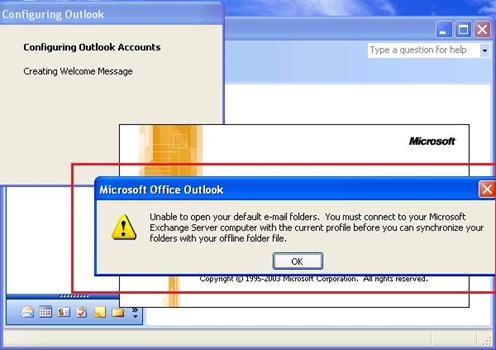
Can’t Connect Outlook 2003 To Exchange 2010. Unable To Open Your Default E-mail Folders…

I was trying to connect to my Exchange 2010 Server with Outlook 2003, but couldn’t connect successfully. I tried with Outlook 2007 & 2010 and was able to connect successfully. That made me search whether Outlook 2003 is a supported client and it is. The error message is “Unable to open your default e-mail folders”

After playing around for a while, and a bit of Googling I found the solution. Before I jump in to the fix, let me explain a few changes in Exchange 2010 in terms of MAPI connectivity.

•All MAPI clients connecting to Exchange 2010 server connects to the mailbox through the CAS Server.

•A new service named Exchange RPC Client Access is introduced in 2010 CAS which handles all MAPI connections.

•All MAPI clients connect to the mailbox server directly in Exchange 2007.
Now that we know about the new RPC Client Service running on the 2010 CAS Server, lets bring up the full info by running Get-RpcClientAccess | fl

We can see that this service needs rpc encryption and it is set to True by default.

Same is the case with Outlook 2007 & 2010 profiles! Encryption between Outlook and Exchange is enabled by default, which explains why these clients can connect to Exchange 2010 without any issues.

Outlook 2003 profiles don’t enable encryption by default.

Once I checked the box, I could connect to my 2010 mailbox.

You can also disable the requirement of 2010 CAS servers to have encryption enabled by running:

Set-RpcClientAccess –identity servername –EncryptionRequired $false.

This is not recommended though!

If you have too many Outlook 2003 clients trying to connect to a 2010 server, you can enable encryption using Group Policy.

iPhone Tricks You Might Not Have Known (iPod Touch Tricks Included)

Whether you’re an iPhone rookie or a weathered pro, take a look at these quick-and-easy iPhone tips and tricks which not only save you time, but ease your overall iPhone experience.

(These items are listed in no particular order.)

Scroll to Top of Page –
In any application, Safari included, you can automatically scroll to the top of the page by tapping on the “top bar”, which has the time, service bars, and battery. In Safari, this not only brings you to the top of the page, but also brings up the URL bar.

Domain Suffix – [On firmware 2.0 onwards only]

Hold down the “.com” key for “.net, .edu, .org” keys. Note: Slide your finger from .com to .net/.edu/.org, rather than lifting and pressing

Stay Tuned for more useful tips 🙂

iPhone 3GS vs HTC HD2

Hi all, I have recently changed my Apple iphone for the new sleek HTC HD2 (Leo)… I took me a lot of time to decide on the HD2 as I am a big lover of the apple iPhone My reasons to change to the HTC HD2 are as follows:

1, Cost
2, 5 mega pixel camera and flash
3, I can use the HD2 as a modem on my netbook, without paying for further internet tethering services as you would do with the iPhone
4, I no longer need to use Apple’s iTunes to govern what goes onto my device
5, Microsoft office mobile – I am a big user of office 2003 / 2007 and will benefit from these features.
6, I can upgrade the memory by changing the micro SD card in the HD2
7, Purchase / replace the battery in the HD2

To follow is my review of both phones, I found a lot of this information on other websites, but most of it reflects my thoughts on both devices.

Design

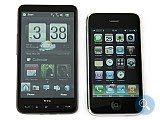
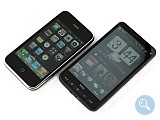
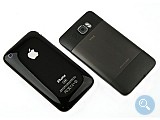
Side by side, the HD2 and iPhone 3GS look similar and yet much different from each other. On the one hand, they both deliver customer interactivity that is heavily dependent on touch sensitive screens. On the other, there is significant difference in scale here. The 3.5-inch screen of the iPhone is by no means small, but the 4.3 inches of the HD2 dwarfs it and makes it look as it was tiny. Both displays offer good image quality indoors, but the iPhone has the upper hand outdoors, in bright sunlight. Their sensitivity is extremely high, although the HD2 has the edge here, despite the fact that this is not much of an advantage in this particular case.

Interface:

Despite its name “Sense”, HTC´s personalized interface looks like (and has the functionality of) the well-known TouchFLO 3D and they are actually almost identical in every respect. The home screen consists of multiple tabs that will allow you to quickly get to almost any function of the phone. It´s a good thing that Sense adds integration of Facebook, Twitter and YouTube, because using these social services feels easier and better than ever. Behind the appealing face of Sense, however, lies the power of Windows Mobile 6.5 that business people do appreciate.

The iPhone OS platform is also quite famous among customers. Visually, it may be far from spectacular, but its distinguishing features are simple, user-friendly interface and fast speed. You don’t need to have solid knowledge of cell phones in order to make the most of your iPhone right away, because everything is right-down intuitive.

With the rapidly improving hardware, however, the performance gap between these operating systems is getting smaller and less significant by the day. Thanks to its 1GHz processor and ample amount of RAM, the HTC HD2 responds just as fast and reliably to your commands as the most powerful iPhone. What´s more, HTC Sense looks more contemporary and offers integration of social networks, quite a serious advantage indeed.

Messaging:

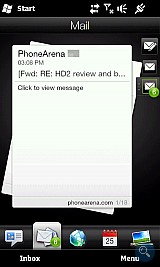
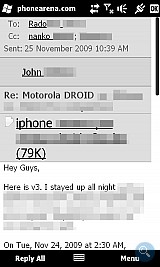
Any self-respecting smartphone should be able to offer proper email functionality. Of course, both the HD2 and the iPhone 3GS are great performers in this respect, they just visualize the relevant information differently. The HD2 comes with dedicated Mail tab that allows users to go over shorter versions of their emails on the fly. Its advantage is the ability to instantaneously switch between email accounts.

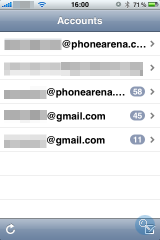
You don’t have tabs on the iPhone, so like it or lump it, you will have to get to know the Mail application better, which actually sports the same functionality found on its rival. It also permits users to take a quick look at short versions of all received emails, but its shortcoming is that switching between accounts feels clumsier alongside of the way you do it on the HD2.

The QWERTY keyboard is another extremely important aspect you need to consider in terms of proper email handling. The keyboard layout of the iPhone 3GS features more space in between keys, which equates to lower chance of pressing the wrong button. In the case of the HD2, buttons are larger, but more cramped. We wouldn’t dare call either of them a winner here if it wasn’t for the excessive screen sensitivity of the HD2 which means higher probability of typing mistakes due to increased number of erroneous presses. Despite that, you can´t go wrong with either handset and you can be pretty sure you´re getting the best no matter your particular choice.

Software:

If you happen to be someone who enjoys proper entertainment or for some reason needs various software applications, the available variety at the online application stores of Apple and Microsoft is an important factor and something you do need to consider.

In other words, if you happen to be a person who likes having fun and lend color to their daily grind with various applications, you better head for the nearest mental health treatment facility and… this is a joke of course, not funny at that. Well, if you happen to be such a person, you better opt for the iPhone, because you will get access to a software library of almost 100,000 programs. On the other hand, there are quite a few applications for Windows Mobile as well. The thing is not many of them can be found at Windows Marketplace for Mobile itself, not to mention the free stuff there is as scarce as chicken teeth. To top it off, paid programs cost an arm and a leg. Hands down, the iPhone remains our blue-eyed boy here.

SharePoint Designer 2007 Resources

Adding SharePoint Lists and Libraries using SharePoint Designer
http://office.microsoft.com/en-us/sharepointdesigner/HA101487201033.aspx
http://office.microsoft.com/en-us/sharepointdesigner/HA101174371033.aspx

SharePoint Designer Workflows
http://office.microsoft.com/en-us/sharepointdesigner/CH100667661033.aspx

HTML Code
http://www.htmlcodetutorial.com/
http://www.web-source.net/html_codes_chart.htm

CSS
http://www.w3schools.com/css/
http://www.w3.org/Style/CSS/

Master Pages
http://office.microsoft.com/en-us/sharepointdesigner/CH100667701033.aspx
http://www.heathersolomon.com/blog/articles/BaseMasterPages.aspx

Master Page Templates
http://office.microsoft.com/en-us/help/HA102223711033.aspx

SharePoint Branding
http://www.cleverworkarounds.com/

Core CSS Customisation
http://www.heathersolomon.com/content/sp07cssreference.htm

Publishing Pages in SharePoint
http://office.microsoft.com/en-us/sharepointdesigner/HA101741331033.aspx

Books on SharePoint Designer

Microsoft Office SharePoint Designer 2007 Step by Step – Penelope Coventry Microsoft Press Professional

Microsoft Office SharePoint Designer 2007 – Woodrow W. Windischman, Bryan Phillips, Asif Rehmani Wrox

Building Web Applications with Microsoft Office SharePoint Designer 2007 Step by Step –
John Jarsen Microsoft Press

Microsoft Office SharePoint Designer 2007 Bible – Vikram Kartek Wiley

Me

Facebook – Malcolm Plested

My favorite social app. Facebook really allows me to be myself and share what’s going on both personally and professionally. For me it’s been fun to watch these worlds collide in Facebook. Many I know don’t do this for a reason, but for me it’s been an incredible journey the past couple of years. Finding friends, old associates, and having rich interactions. From a professional perspective it’s great to have such rich interactions with people from around the globe and to both see what they are doing and feel apart of it through threaded comments. It’s more than a simple status app. The app platform, while it’s taken a few steps back, has kept it solid and useful while at the same time I am able to share events, and interesting things in my life with hundreds of people around the globe. Email for me is becoming stale, just not as rich.

Linked In – Malcolm Plested

Linked in is a no brainer for me. Create the profile, add some associates from my address book… only those that are already on there, and then from those people find others… and boom a few months later you’ve got hundreds of contacts. From a professional perspective I like the recommendations, introductions, etc… I don’t really get into the groups. I let linked in manage itself and do occasionally read the weekly rollups from the groups I’ve found to be relevant, but mostly this has become my rollodex. Happy to not have to worry about keeping peoples cards. Much prefer them to be contacts on Linked in or facebook.

Twitter – Malcolm Plested

Twitter is a bit of a one off. I have found value in Twitter, but I do think it’s healthy to not spend a lot of time sitting on it. It reminds me of TV a bit in that it’s great for killing time. IT does provide a communication mechanism for allowing anyone to contact me and comment on my content or say things about me good or bad.