Moving Veeam Backup Data To A New Backup Repository


We are going to move the backup data to a different repository keeping the original backup job intact

Picture

Open Veeam
In the panel on the left goto
Backups
  ¬ Disk
Now in the right hand side panel find the job you wish to move, right click on it and select
Remove from backups
DO NOT Select Remove from Drive, this will delete your back up 


Picture

Now in your OS Browse to where you backup files are stored
Im going to move the Files from one Nas Drive to another as my Original Nas is nearly full
Select the file backup you wish to move and highlight it, hold down the right mouse button and drag it to the new Nas drive, release the button and select move here.
This will copy at the files and keep them intact for later.


Picture

Head back over to Veeam
And from the Bottom Menu select Backup Infrastructure
And highlight Backup Repositories from the list above, now on the right you will see your Nas drives
I have moved my backup from VMBackupNas to VMBackupNas2
So i need to select VMBackupNas2 and right click on it, and select Rescan repository


Picture

I have moved my backup from VMBackupNas to VMBackupNas2
So i need to select VMBackupNas2 and right click on it, and select Rescan repository
You should see it start scanning like the image to the left
We now need to tell veeam where to find the backup files we have moved, so that our backup jobs will continue as normal but the actual data has moved.


Picture

Select Backup and Replication from the bottom menu and then select and edit the job.
Go through as if your going to recreate the job until you reach Storage.
We want to change the Backup Repository so select the repository where you have move the data to, in my case VMBackupNas2.
You will see Map Backup highlighted in blue, click on it and select the backup.
This is very important as Veeam will not see where the old files are unless you complete this step.
If you did not do this it would create a whole new folder to store the backup files.
click next a few time and then finish.

Windows Server 2008 & 2012 Export & Import GPO Using Powershell


There may be times when it is useful to use an existing Group Policy Object (GPO) as a template for a GPO on another server, or perhaps you just need to perform a GPO backup and restore. Here is how to export and import GPOs from the command line.


Starting the Group Policy Cmdlet in Powershell

Firstly, from the command line start powershell and import the Group Policy Cmdlet:

powershell

import-module grouppolicy


Exporting a GPO

Check that the backup directory you wish to use exists. If not, create it.

Powershell command:

Backup-GPO -Name -Path

Example: to backup a GPO called “Example GPO” to the directory “C:\GPOBackup”

Backup-GPO -Name "Example GPO" -Path "C:\GPOBackup"


Importing a GPO

Keeping the same GPO Name

Powershell command:

Import-GPO -BackupGPOName -CreateIfNeeded -Path

Example: to import a GPO called “Example GPO” from the directory “C:\GPOBackup”

Import-GPO -BackupGPOName "Example GPO" -CreateIfNeeded -Path "C:\GPOBackup"

Renaming the GPO

Powershell command:

Import-GPO -BackupGPOName -TargetName -CreateIfNeeded -Path

Example: to import a GPO called “Example GPO”, renaming it to “New GPO”, from the directory “C:\GPOBackup”

Import-GPO -BackupGPOName "Example GPO" -TargetName "New GPO" -CreateIfNeeded -Path "C:\GPOBackup"

How To Activate Windows Server 2012


1, Open a command prompt with elevated rights

* Hover mouse in the bottom left hand corner to get the start icon or use ctrl+esc or windows key / command key.
* Right click anywhere on blank space in the start launch or ctrl+tab.
* From the Apps launch start typing “CMD” then right click or arrow key til highlighted and alt+spacebar to get the options to run as administrator.

2, Type the following command to register key

Type:
“slmgr.vbs /ipk {product key, including dashes}”
hit enter

Below is a Video showing you what you need to do:

Windows 8 Error 850 connecting to VPN


Error:
Error connecting to VPN connection

Error 850: The Extensible Authentication Protocol type required for authentication of the remote access connection is not installed on your computer.

VPN Windows 8 Error 850

VPN Windows 8 Error 850

Solution:
Open the VPN Connection Properties > Select the “Security” tab > Check “Allow these protocols” and click OK.

VPN Connection Properties Security Tab

VPN Connection Properties Security Tab

How To Setup Windows Server 2012 Hyper-V Replication


In my opinion the best feature of Windows Server 2012 Hyper-V is the Replication service.

Hyper-V Replica provides a way to replicate a Virtual Machine to another Hyper-V Host in case the primary Hyper-V hosts fails.  The best part about Hyper-V replica is that it doesn’t require shared storage; just two 2012 Servers running Hyper-V.  The following guide will walk you through the step by step processes of setting up Hyper-V replication in two windows 2012 servers:

Step1-

Open the Server Manager and Add the destination server Using Add Server Wizard.

1

Step2-

Then on both servers which you going to use for the replication scenario, just create a New Folder and right click on it and under Folder Properties just click the Sharing option. After that select the Advance Sharing option.

2

Step3-

Under Folder Advance Sharing option add the administrator and give the full access permission to it. In my case I have joined both servers to MSCLOUD.COM domain and I have given the Full rights to MSCLOUD\Administrator. Do the Step 2 and 3 for the other server too.

3

Step4-

After given the permission, open the Hyper-V Manager console in one server. In my case I have added the second server to my Hyper-V manager console to manage both using one console. Then in my case I am going to replicate one virtual machine from SRV-HV to Microsoft server. So first thing you have to do is enable the replication services for both Physical servers first.

Select the one server and click Hyper-V Settings as follows.

4

Step5-

Under Hyper-V settings Enable Replication Configuration and Enable the Live Migration option as follows.

5

Step6-

Under the Replication service Select the Enable this Computer as  Replica Server. Then to communicate in a proper channel you can use either Port 80 or Port 443. But in my case I used Port 80 HTTP). If you need to use port 443 then you have to use a trusted certificated for both physical servers.

Once select the proper communication port Under Authentication and Storage Option select the Allow replication from the specified server option.

6

Step7-

Then select the Add tab to specify the replica server details as follows.

7

Step8-

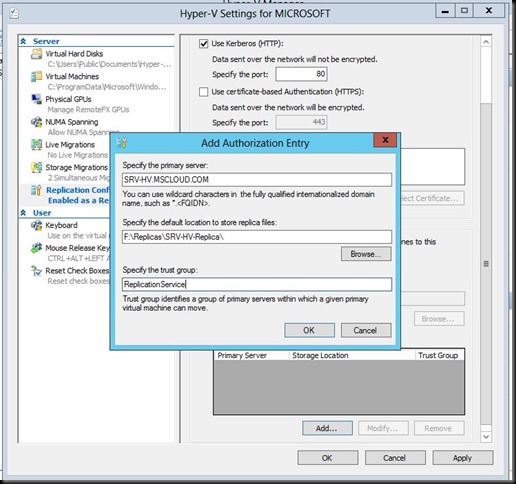
Then under Authorization Wizard specify the replica server (Destination server)details and specify the file store location for replica files as well. For easy management you can create a Trust Group as well. For trust group creation you can mentioned and name you like.
The file location is the folder which you have created in step 2 and step 3.
8

Step9-

After specify the details Press OK to continue and then it will give you a Warning Message to open the firewall port for communication ports. In my case I have to open port 80 within the firewall.

8-ADDITIONAL

Step10-

Next you need to Enable the Live Migration option. Using Live migration option you can do a Failover while having Planned down time. Make a note that enabling Hyper-V replica you can start up the Virtual machine from the destination server with planned downtime. This is not a migration which happens automatically. But I believe the time which going to up the Virtual machine from the destination is just a matter of time you going to access the Destination server and starting the Virtual Machine. Winking smile

After you enable the Live Migration option You can use the Authentication Protocol you want.

Also you can specify the IP range which use for Live migration. In my case I have given the 172.21.13.0/24 range.

9

Step11-

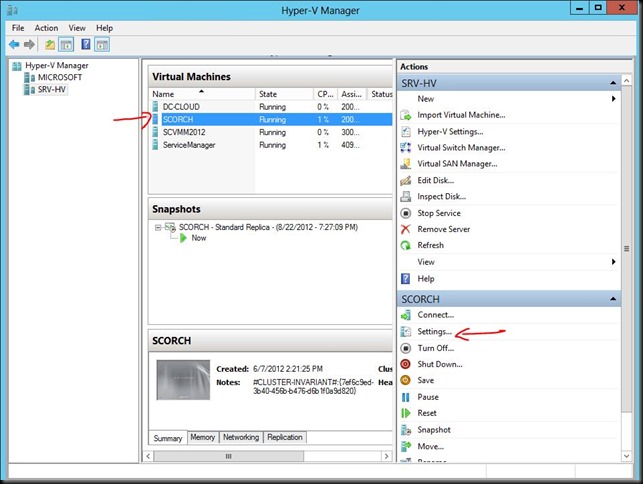
Follow the same steps from Step 4 to Step 10 for the second physical server as well. After enabling the Replication services in Physical Hyper-V servers you have to make sure the replication service is already enabled in the Virtual machine which you want to have a copy of replica. In my case I have selected the SCORCH VM which is running in SRV-HV.

Select the VM and go to settings of the VM as follows.
10

Step12-

Make sure that the VM is using he correct port for the Replication service.

11

Step13-

After confirming the setting just Right Click on the VM and select the Enable Replication option in Virtual Machine.

12

Step14-

Once you select the Enable Replication option it will begin a new configuration wizard as follows. Click Next to continue.

13

Step15-

Under Specify Replica Server wizard Select the Replica Server as follows. In my case my replica service is going to be a Microsoft.MSCLOUD.COM. And my Primary server is SRV-HV.MSCLOUD.COM.

14

Step-16

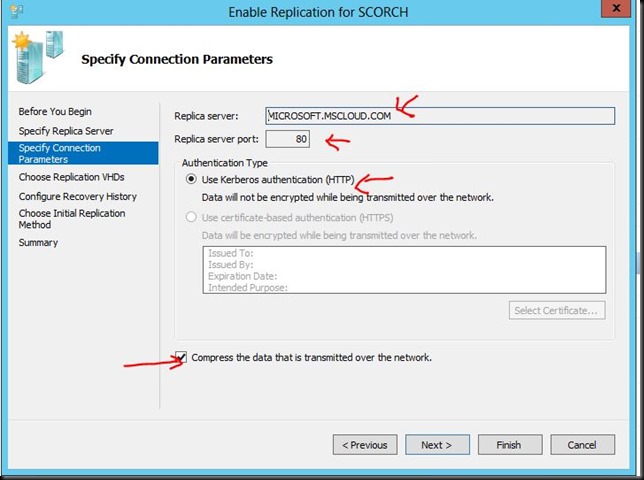
In next step under Specify Connection Parameters wizard Select the Communication port and make sure the Replica Server is correct.

Note- Also make sure to compress the data when the files are replicating over the network. While enabling this option it will help you to reduce the Bandwidth utilization within the network.
15

Step17-

On Choose Replication Wizard you can SKIP any .VHD file replicating to destination replica server. In my case I have only one .VHD file in my server and therefor I don’t have any .VHD file to skip of replicating. Click Next to continue.

16

Step18-

On the Configure Recovery History option you can select the how many recovery points you need to store in the replica server. While have the additional number of recovery points you can recover the virtual machine to earlier point in time. Click Next t continue.

17

Step19-

On the Chose Initial Replication Method you can select Send the Initial Copy of the Virtual Machine over the network, or if you feel it will take long time to copy the initial VM data to the replica server over the network then you have the option to copy the replica data first to external drive and then copy the data to replica server using it to expedite the process. Also you have the option to Schedule the replication as you want. Click Next to Continue.

18

Step20-

On the Summary page verify the configuration settings you made and Click Finish to complete the Replication wizard.

19

Step21-

Once you click Finish button it will give you a Message to let you know that the replication is enabled successfully on the selected virtual machine. Click Close button.

20

Step22-

On the following screen you can see after enabling the replication service the SCORCH VM is sending the Initial replica copy to the destination Hyper-V replica server.

21

Step23-

Once you select the destination replica server on the Hyper-V Manager console it shows that the SCORCH VM is created in the destination server and its Receiving the replica copy from the primary server.

22

Step24-

After initial copy sent to the replica server successfully you can do the Planned Failover to test the replication as follows. Smile

23

Step25-

Click the Planned Failover option as follows.

26

Step26-

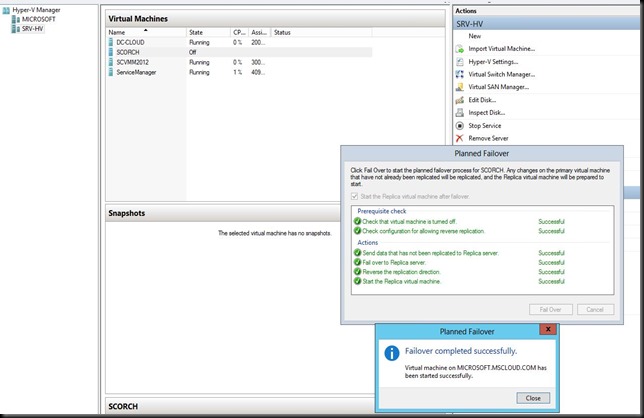
Once you Click the failover option it will initially check the prerequisites and if everything is suitable it will start the Virtual machine in the replica server.
27

Congratulations….. you will have successfully created a Hyper-V replica server….. Enjoy!!!

Cannot connect to the ESXi 5.0 host or vCenter Server 5.0 using the vSphere Client (2011834)


Symptoms
  • Cannot connect to the ESXi 5.0 host or vCenter Server 5.0 using the vSphere Client
  • Connecting to the ESXi 5.0 host or vCenter Server 5.0 using the vSphere Client fails
  • You see the error:
    vSphere Client could not connect to “vCenter_Server_IP_Address“.
    An unknown connection error occurred. (The request failed because the client could not validate the server’s SSL certificate. (The underlying connection was closed: Could not establish trust relationship for the SSL/TLS secure channel.))”
  • This issue occurs on WIndows 2003 Server and Windows XP machines
Resolution

To resolve this issue, install/reinstall Microsoft .NET Framework 3.5 Service Pack 1 or later.

To download Microsoft .NET Framework 3.5 Service Pack 1, see the Microsoft Download Center.

Managing Office 365 with Windows PowerShell


PowerShell is an incredibly powerful tool that if you’re not already using it and you’re a Windows Systems Administrator you will want to make it a priority. It is even more necessary if you are considering making the jump to Office 365. Microsoft does not give you access to the back end management software for Exchange (ESM), or SharePoint (Central Administration). Instead there is a chopped down web interface that provides you with the basics, and PowerShell is used to fill in the gaps. Gaps like, giving editing rights to a shared calendar and many more.

There are a few steps that you will need to take before you can start using PowerShell to manage your Office365 domain.

1.

Prerequisite software

PowerShell:
If you’re running Win7 or newer you will have PowerShell all ready installed. If not you will need to download and install it. You can get PowerShell 3.0 here:http://www.microsoft.com/en-us/download/details.aspx?id=34595. Warning, if you’re managing Exchange 2010 or earlier on premise with PowerShell you will need to use PowerShell 2.0.

Microsoft Online Services Sign-in Assistant:
You will need this small piece of software installed to be able to connect to Office365. It is also necessary for running the Lync client on your desktop. You can download them here:
32 bit – http://go.microsoft.com/fwlink/p/?linkid=236299
64 bit – http://go.microsoft.com/fwlink/p/?linkid=236300

2.

Install Office 365 Cmdlets

The next thing that you will need is access to the Office365 cmdlets so that you will have the commands that you need to manage your domain. You will need to download and install these files:
32 bit – http://go.microsoft.com/fwlink/p/?linkid=236298
64 bit – http://go.microsoft.com/fwlink/p/?linkid=236297

3.

Scripting your connection

Once you have finished the above you’re ready to actually connect to your Office365 domain. Here is the syntax that you will need to run:

Import-Module MSOnline
$O365Cred = Get-Credential
$O365Session = New-PSSession –ConfigurationName Microsoft.Exchange -ConnectionUri
https://ps.outlook.com/powershell -Credential $O365Cred -Authentication Basic -AllowRedirection
Import-PSSession $O365Session -AllowClobber
Connect-MsolService –Credential $O365Cred

Coming soon…. Basic administrative PowerShell command lets that will make it easy for you to complete simple admin tasks within O365.

Enable / Disable the Sudden Motion Sensor on a Mac


image

The Sudden Motion Sensor is designed to protect your Macs hard drive in the event of a computer being dropped or an unusually strong vibration. Essentially what it does is park the hard drive head when movement is detected, which prevents it from potentially scooting across the disk surface and scratching or otherwise damaging the drive or drive head.

Generally speaking, you will want to always have the SMS sensor enabled, but Apple mentions that certain environments are susceptible to unnecessary drive head parking due to the SMS. Basically the SMS detects a strong vibration and then the hard drive parks which can cause video and music playback issues, amongst other annoyances. This is particularly true with concert halls with strong acoustics, recording studios, dance and night clubs, and even walking workstations (the ones with a treadmill under a standing desk). Also, some owners of SSD drives may want to disable the feature.

Disable Sudden Motion Sensor on a Mac Laptop

This works to disable the Sudden Motion Sensor on the MacBook Pro, MacBook Air, MacBook, PowerBook, and iBook running Mac OS X 10.6 and lower:

Launch Terminal
Type the following at the command line: sudo pmset -a sms 0
Hit return and enter your password
The SMS sensor is now disabled, it’s just as easy to reenable again by changing the zero to a one when you need the protection back:

Enable the Sudden Motion Sensor on a Mac Laptop

This works on the same hardware as disabling the feature, and it’s basically the same commands:

Launch Terminal
Type the following at the command line: sudo pmset -a sms 1
Hit return and enter your admin password
You’ll notice the commands are identical except that the -a sms flag now has 1 attached to it rather than 0 (standard computing protocol of 1 for on, 0 for off).

Checking the status of the Sudden Motion Sensor
If you’re not sure whether the motion sensor is enabled or not, you can check quickly with the command line:

Launch Terminal
At the command line, type: sudo pmset -g
Hit return, enter your password, and look for “sms” in the list. Seeing a 1 next to sms indicates that the motion sensor is enabled, seeing a 0 next to sms indicates the motion sensor is disabled

Most users will never need to adjust the sudden motion sensor, but if you do find yourself in a situation where there are continuous vibrations or movements and your Mac is behaving strangely, this may be the culprit.

Windows Server 2008 R2 & Windows 7 Clear Up winsrx folder


After a period of time Windows operating systems begin to fill the disk space on the system drive… this is because of all the Windows Updates that you should be applying… The WinSRX folder lives inside the Windows folder on the root drive…. One of the steps to clear out the temporary Windows update files is to run the following command in an elevated command prompt:

DISM /online /Cleanup-Image /SpSuperseded
image

Install and Configure Windows PowerShell Web Access in Three Easy Steps


Windows PowerShell Web Access Gateway Architecture


Windows PowerShell Web Access is a new feature in Windows Server 2012. It is an IIS application that provides a Windows PowerShell console in a web browser. The IIS application acts as a gateway between the web browser and the machines that you can connect to in your environment. These machines should have Windows PowerShell remoting enabled.

The following is all done from an elevated PowerShell window of the Windows 2012 server you want to install PWA on.


1. Import the Server Manager PowerShell module and install the Windows PowerShell Web Access feature


Import-Module ServerManager

Install-WindowsFeature -Name WindowsPowerShellWebAccess -IncludeManagementTools


2. Install the Web Application in IIS


Install-PswaWebApplication [-UseTestCertificate]

Add the -UseTestCertificate parameter if you don’t already have an SSL certificate installed on the server. This will install a self-signed SSL certificate that will expire in 90 days.


To use an existing SSL certificate, make sure it is configured in Bindings on the Website to use that certificate.


3. Configure Authorisation Rules


Add-PswaAuthorizationRule -UserName domain\username -ComputerName * -ConfigurationName *

This Authorisation Rule will allow the specified account to connect to any computer with any configuration name.

If you are installing on a workgroup server substitute the computer name for domain.


That’s all there is to it!

You can access Windows PowerShell Web Access from Internet Explore using the following URL: https://servername/pswa

Windows PowerShell Web Access Login

Enter your user name, password, and the computer name you want to connect to and then click Sign In.

Windows PowerShell Web Access

A Windows PowerShell window will open in your IE browser, connected to the computer you targeted.

As mentioned above, the target computer must have Windows PowerShell remoting enabled. You can do this by running the following command from an elevated PowerShell prompt:

Enable-PSRemoting -Force