I recently have had network issues at one of my customers sites with DHCP, this tool was very useful in the troubleshooting phase of resolving the problem.
http://blog.mir.net/2014/10/rogue-dhcp-server-detection-free-tool.html
I recently have had network issues at one of my customers sites with DHCP, this tool was very useful in the troubleshooting phase of resolving the problem.
http://blog.mir.net/2014/10/rogue-dhcp-server-detection-free-tool.html
If your trying to access a Microsoft Remote Desktop Services / RDS website from a Windows 8 machine or a pc with Internet Explorer 10 or 11 then you will see the error below :-

Browser Not Supported - This Web browser is not supported by RD Web Access. RD Web Access requires Internet Explorer 6.0 or later. You can download the latest version of Internet Explorer from the Windows Update Web site
This is caused by Microsoft not releasing an update to 2008 to allow it to be accessed in the later browsers. In order to get it to work we can implement a workaround that forces machines with newer browsers to access the site as IE9 compatability view.
First of all this fix ONLY works on RDS Gateway servers with 2008 R2 SP1 installed. If you try it on a server without SP1 it will get rid of the error but you wont see any remote apps.
1) Login to the RDS Gateway server
2) Open Up IIS Management Console.
3) Branch out the sites and then left click on RDweb. On the right hand side double click on HTTP Response Headers.

4) On the right hand pane now right click and select Add…

5) On the box that appears enter :-
Name : X-UA-Compatible
Value : IE=9

Now do a IISRESET on the server and you should be good to go..
UPDATE : If you have any pending windows updates also install these as sometimes it wont work until they are installed.
If packets are not being dropped and the data receive rate is slow, the host is probably lacking the CPU resources required to handle the load. Check the number of virtual machines assigned to each physical NIC. If necessary, perform load balancing by moving virtual machines to different vSwitches or by adding more NICs to the host. You can also move virtual machines to another host or increase the host CPU or virtual machine CPU.
Verify that VMware Tools is installed on each virtual machine.
If possible, use vmxnet3 NIC drivers, which are available with VMware Tools. They are optimized for high performance.
If virtual machines running on the same ESX/ESXi host communicate with each other, connect them to the same vSwitch to avoid the cost of transferring packets over the physical network.
Assign each physical NIC to a port group and a vSwitch.
Use separate physical NICs to handle the different traffic streams, such as network packets generated by virtual machines, iSCSI protocols, VMotion tasks, and service console activities.
Ensure that the physical NIC capacity is large enough to handle the network traffic on that vSwitch. If the capacity is not enough, consider using a high-bandwidth physical NIC (10Gbps) or moving some virtual machines to a vSwitch with a lighter load or to a new vSwitch.
If packets are being dropped at the vSwitch port, increase the virtual network driver ring buffers where applicable.
Verify that the reported speed and duplex settings for the physical NIC match the hardware expectations and that the hardware is configured to run at its maximum capability. For example, verify that NICs with 1Gbps are not reset to 100Mbps because they are connected to an older switch.
Verify that all NICs are running in full duplex mode. Hardware connectivity issues might result in a NIC resetting itself to a lower speed or half duplex mode.
Use vNICs that are TSO-capable, and verify that TSO-Jumbo Frames are enabled where possible.
Note: E1000 does not support jumbo frames prior to ESXi/ESX 4.1.
One of the biggest challenges I have when migrating customers over to SharePoint is moving their files and folders.
On the surface this is a daunting task as you can’t just give SharePoint your folder structure and tell it to do the work for you, so below are some of the processes I use.
Recreate the folder structure in SharePoint and upload the files via SharePoint in batches doing a multiple file upload to one destination folder at a time using explorer view. Not much fun for anyone, but it can be done. This has also proved to be unreliable, some machines need patching to get this to work, so I have found myself spending a lot of time correcting errors with the WebDAV service in order get this to work… This is my least favourite method.

Possibly look at a third party tool they will cost you but will get the job done and probably with a few extra bell’s and whistles like applying metadata to SharePoint columns during the process. Some of the key companies to take a look at would be:
There are some open source projects going around that claim to handle these types of bulk uploads, here’s a couple that look interesting:
https://spfilezilla.codeplex.com/ – This is my favourite – it really is just like FileZilla

http://spbulkdocumentimport.codeplex.com/

http://spfileupload.codeplex.com/

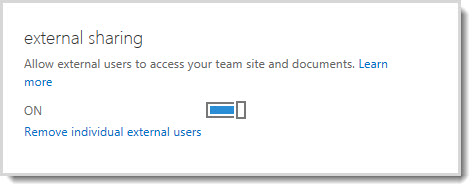
The ability to invite external users to the Team site is enabled by default, so site owners and site collection administrators can share the Team site or any of its subsites with external users at any time. However, if you are the Office 365 admin, you can choose to disable the feature for all sites so that no future invitations can be sent. When this feature is deactivated, any external user currently invited to sites will no longer be able to access the sites.
Enabling external sharing is not the same thing as enabling anonymous access. When external sharing is enabled, users must be authenticated (by signing in) before they can access internal resources.
SECURITY
If you need to remove external users so that they no longer have access to sites that have been shared with them, you can do so by removing them from the list of external users in Office 365 Service Settings.
A little over two years ago, I purchased my first MAC Book Pro and have not looked back since. Admittedly, the first thing I did was to install Windows as VM on it, but this was a case of having to because of my day job.
I have recently moved to PKF Cooper Parry LTD as a Infrastructure Consultant. One of my first projects is to migrate a small company’s data to O365 SharePoint. I will be delivering SharePoint training to end users next week, but have identified that the directors of the business all run from MACs.
One question to me in a planning meeting was…. Can I access SharePoint from my MAC? The answer is yes, and in some cases feels simpler to access your data than it does on a Windows PC.
Here’s how you connect your Mac with OSX to a SharePoint library — this requires Office for Mac 2011:
Microsoft Document Connection, which was introduced in Office for Mac 2008 SP2 can connect to both SharePoint sites and OneDrive (not yet OneDrive for business). Multiple file upload is simple with this application – just drag and drop them into the application then everything is done. The application itself can be seen as a very lite version of SharePoint Workspace, although it doesn’t do much beyond upload, read, edit, check in/check out. You cannot delete a file, create a new folder, or edit its metadata properties in this app, and to get the latest update you need to hit Refresh button.

The TechNet document Plan browser support in SharePoint 2013 says that Safari is “Supported”. Unfortunately “Supported” does not mean that you will get full functionality. There are a hand full of features, that still only work with ActiveX (IE8/9 on Windows,Chrome/Firefox on Windows via plugins). These are important features like: presence information, Outlook integration (stssync), multiple file upload, and so on…)
What do you need to know before you begin?
* You need to install the Microsoft .NET Framework 4.5 or 4.5.1 and then either the Windows Management Framework 3.0 or the Windows Management Framework 4.0. For more information, see Installing the .NET Framework 4.5, 4.5.1 and Windows Management Framework 3.0 or Windows Management Framework 4.0.
$UserCredential = Get-Credential
In the Windows PowerShell Credential Request dialog box, type your Exchange Online user name and password, and then click OK.
$Session = New-PSSession -ConfigurationName Microsoft.Exchange -ConnectionUri https://outlook.office365.com/powershell-liveid/ -Credential $UserCredential -Authentication Basic -AllowRedirection
Note If you are an Office 365 operated by 21Vianet customer in China, use the following value for the ConnectionUri parameter: https://partner.outlook.cn/PowerShell.
Import-PSSession $Session
 Note:
Note:
Be sure to disconnect the remote PowerShell session when you’re finished. If you close the Windows PowerShell window without disconnecting the session, you could use up all the remote PowerShell sessions available to you, and you’ll need to wait for the sessions to expire. To disconnect the remote PowerShell session, run the following command.
Remove-PSSession $Session
How do you know this worked?
After Step 3, the Exchange Online cmdlets are imported into your local Windows PowerShell session as tracked by a progress bar. If you don’t receive any errors, you connected successfully. A quick test is to run an Exchange Online cmdlet—for example, Get-Mailbox—and see the results.
If you receive errors, check the following requirements:
Set-ExecutionPolicy RemoteSigned
To get all the software I needed I went to the following website where you can download all the required “NOOBS” (New Out Of the Box Software) you require.
http://www.raspberrypi.org/downloads/
Once the operation system had been installed I needed to work out how to get access to the PI remotely. The following are the steps I took in order to make this work.
1, Enabling the GUI
sudo raspi-config

boot_behaviour and click enter. This should make it so that the GUI interface start automatically.


The following made it easy to transfer that autocomplete data to a new profile.
You would create and log in with a new profile, let’s call it “Personal Email”. This would create a blank new NK2 file called “Personal Email.NK2″. Then you could simply delete that NK2 file (I usually renamed it to Personal Email.OLD” – force of habit). Next, rename “Work Email.NK2″ to “Personal Email.NK2″. When you log into your new profile all your auto-complete data was there.
This all changed in Outlook 2013. Outlook 2013 did away with the NK2 file completely and merged all the autocomplete data into the users Exchange Mailbox/PST file. This was great in part as many people often forgot to transfer that NK2 file when they moved to a new computer, or, the autocomplete data was lost in the event of a catastrophic failure, such as a failure of the local hard drive.
What I found is that in some form autocomplete data does still exist in your local profile. On a Windows 7 box if you navigate to the RoamCache folder identified below:
C:\Users\\AppData\Local\Microsoft\Outlook\RoamCache
You may find one or more files called.
Stream_Autocomplete_.dat.
This is basically the new cache file for AutoComplete. The string of numbers is likely a SID of some form but where it is referenced (probably the registry) is beyond me.
All you need to do is identify what is the old autocomplete.dat file, normally by looking at the size of the file, the old one will be considerably bigger than the new one as it contains all of your cached addresses. Rename the old one to .old and copy the name before the .dat and rename your new one.
I recently found myself in a meeting discussing Clustering and High Availability Server platforms, and someone mentioned about an Always On Availability Group. This was new to me as I have not had experience of implementing a solution with this topology.
As soon as I had some spare time I did a little research and testing for myself, and I found the following article on Technet which I followed when setting up a SQL Server 2012 Always On Availability Group, below is a copy of that article:
One of the most talked about (and now frequently requested) feature in SQL Server 2012 is AlwaysOn Availability Groups. It brings SQL Server high availability and disaster recovery to a whole new level by allowing multiple copies of the database be highly available and potentially using them for read-only workloads and offloading management tasks such as backups. AlwaysOn Availability Groups allow you to fail over a group of databases as a single entity, unlike database mirroring where you can only do so one database at a time. This is very useful for applications that access multiple databases in a single SQL Server instance like SharePoint Server 2013. In fact, very recently, one of my customers had requested to configure SQL Server 2012 AlwaysOn Availability Groups for their SharePoint 2013 farm. I am also seeing more and more SharePoint 2013 farms leveraging on the SQL Server 2012 AlwaysOn Availability Groups for both high availability and disaster recovery.
This step-by-step has been created to help you get started in creating a SQL Server 2012 AlwaysOn Availability Group for your mission-critical databases.
Prerequisites
Windows Failover Cluster Feature Installation
Since AlwaysOn Availability Groups require a Windows Server Failover Cluster, we first need to add the Windows Failover Cluster Feature to all the machines running the SQL Server instances that we will configure as replicas. For the operating system, we will be using Windows Server 2012. To add the Failover Clustering feature:

Windows Failover Clustering Configuration for SQL Server 2012 AlwaysOn Availability Groups
Prior to configuring the Windows Server Failover Cluster, it is assumed that you have the appropriate rights in Active Directory. For a complete listing of the different Active Directory permissions to create a Windows Server Failover Cluster, see Failover Cluster Step-by-Step Guide: Configuring Accounts in Active Directory. To configure Windows Failover Clustering,


Enable SQL Server 2012 AlwaysOn Availability Groups Feature
Once the Windows Server Failover Cluster has been created, we can now proceed with enabling the AlwaysOn Availability Groups feature in SQL Server 2012. This needs to be done on all of the SQL Server instances that you will configure as replicas in your Availability Group. To enable the SQL Server 2012 AlwaysOn Availability Groups feature,

Create and Configure SQL Server 2012 AlwaysOn Availability Groups
Availability Groups can be created on existing databases or even a temporary one in preparation for application installation. If you intend to create an Availability Group for a new SharePoint 2013 farm, you will need to create a temporary database. This is so that the SharePoint 2013 farm will use the AlwaysOn Availability Group when creating the farm configuration and the admin content databases. After the SharePoint 2013 farm has been created, this database can be removed from the Availability Group configuration and deleted from the instance.
To create and configure a SQL Server 2012 AlwaysOn Availability Group,


Congratulations! You have just created a SQL Server 2012 AlwaysOn Availability Groups. You can now use the Availability Groups listener name in your application connection string. Keep in mind that you need to manually add new databases in the Availability Group even though your application has already been using the listener name. So, be sure to monitor the replicas in your Availability Groups to be alerted when new databases are created.
 Malcolm Plested IT Blogs