So Long iPad….Hello Surface

I simply cannot believe that I am writing this, but as the title suggests I have ditched the iPad favouring the new Surface Pro 4….

I have been a serious Apple fan for many years, in fact I still am. I own a Mac Book Pro, iPhone, Watch and Apple TV and my family also own a range of Apple products-they are superb. However, I am a technical consultant that spends many hour travelling the UK meeting customers and generally fixing stuff. Up until recently I have relied on my trusty iPad Air 2 with the Logitech keyboard and of course the superb Office 365 services.

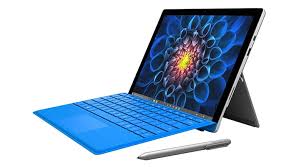
ipad surface

So why the change?

I specialise in all things Microsoft so Windows Servers, Office 365, Azure and also have been known to dabble in Networking and I simply cannot use my iPad for everything For example, if I go and see customers that don’t have wireless networks then I have no means of connecting to the infrastructure. I cannot create Powershell scripts and run them from my iPad, the biggy for me is the Outlook app. I run a small team of engineers and not being able to have true visibility of multiple calendars and business critical applications is a real problem. Don’t get me wrong, I will continue to adore my iPad, I continue to use it regularly for media and also for the range of excellent apps. I also fly drones commercially and the iPad comes in really handy for planning and controlling my drones.

Are there any downsides to the Surface?

Well like everything, you can’t have it all. With my iPad I was used to having a lovely 4g connection pretty much everywhere I went on the Three network. Unfortunately the Microsoft Surfaces do not have the ability to add a sim card for mobile data usage. – I guess I will just have to get used to tethering my device to my iPhone…

To Finish…..

The iPad and the Surface are both superb devices, and right now I am exceptionally lucky to own both of them, but for my professional career as much as it pains me to say this, the Surface gives me just that bit more flexibility to be able to do more aspects of my job. I am looking forward to seeing what 2017 brings in the world of technology, you never know, Apple may pull something out of the bag that yet again makes the iPad the weapon of choice.
Turn on Microsoft Teams for your organisation

Originally posted on Microsoft Office Blogs

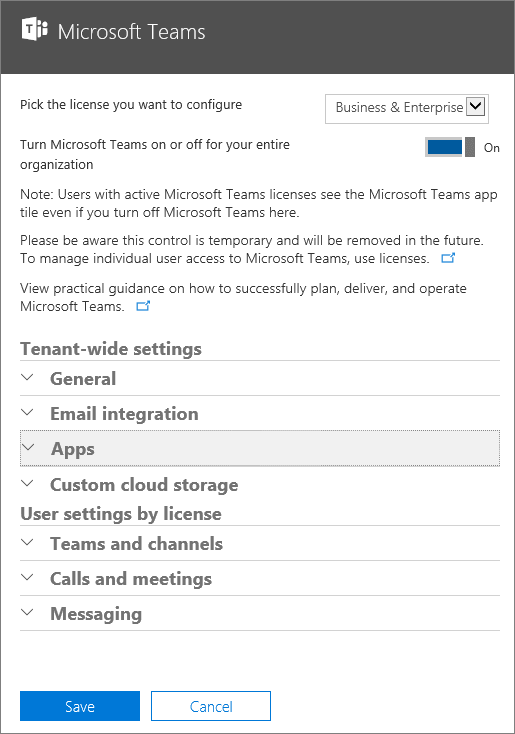
You use the Office 365 admin centre to enable and configure Microsoft Teams for your organisation.

IMPORTANT: All settings are tenant-wide and affect everyone in the organisation who has an active license for Microsoft Teams. To manage per-user licenses for Microsoft Teams, see Turn on or turn off Microsoft Teams licenses.

  1. Sign in to Office 365 with your work or school account.
  2. Choose Admin to go to the Office 365 admin centre.
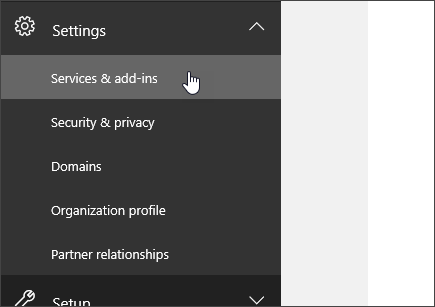
  3. Go to Settings > Services & add-ins.Sign in to Office 365, go to the Office 365 admin center, go to Settings, and then choose Services & add-ins.
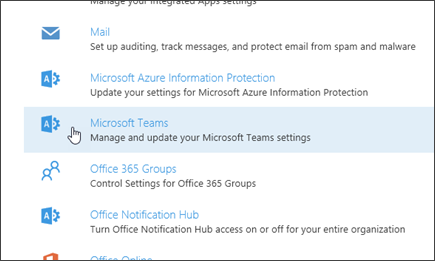
  4. On the Services & add-ins page, choose Microsoft Teams.Scroll down on the Services & add-ins page, and then choose Microsoft Teams.
  5. On the Microsoft Teams settings page that opens, click or tap to switch the toggle to the On position to turn on Teams for your organization, and then choose Save.On the Microsoft Teams settings page, set the toggle to On to turn on Teams for your entire organization, and then choose Save.

General tenant-level settings

On the Microsoft Teams settings page, in the General section, you can choose if you want to show an organization chart in user profiles. By default, this setting is turned on. To change this setting, click or tap to switch the toggle next to Show organization chart in personal profile to Off or On, and then choose Save.

On the Microsoft Teams settings page, under General, you can turn off or turn on organization charts in user profiles.

Teams & Channel

A team is designed to bring together a group of people who work closely to get things done. Teams can be dynamic for project-based work (for example, launching a product or creating a digital war room). Or, teams can be ongoing, to reflect the internal structure of your organization. Channels are subcategories of teams. You might create a channel for an activity or for a department. Conversations, files, and notes are specific to each channel, but all members of the team can see them.

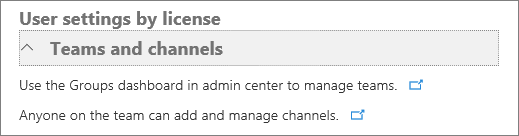
As an administrator, you can manage team owners and members by using the Groups control panel in the Office 365 admin center portal. At this time, you cannot create teams from the Groups control panel – teams must be created by using the Microsoft Teams desktop client or web app.

Admins can create teams and manage ownership and members by using the Groups control panel in the Office 365 admin center.For more information about managing Office 365 Groups, see Create an Office 365 Group in the admin center.
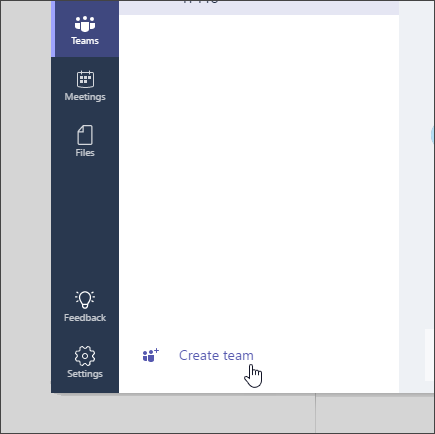
Users can create teams by choosing Teams on the left side in the Microsoft Teams client (desktop or web app), and then choosing Create team at the bottom of the client, below the team list.

Users can create a new team by going to Teams in the Microsoft Teams client, and then choosing Create team.As an admin, you can control which users in your organization can create teams in Microsoft Teams. The same creation settings defined by Office 365 Groups apply to Microsoft Teams. By default, every user has the ability to create a team or group. For more information, see Manage Office 365 Group Creation.

Calls & Meetings

Microsoft Teams includes calling and meeting capabilities, with support for video and screen sharing. Some companies may want to turn off those features. On the Microsoft Teams settings page, in the Calls & Meetings section, you can choose if users can use video and screen sharing during calls and meetings.

On the Microsoft Teams settings page, under Calls & Meetings, you can turn settings off or on to prevent or allow videos and screen sharing in meetings.

Messaging

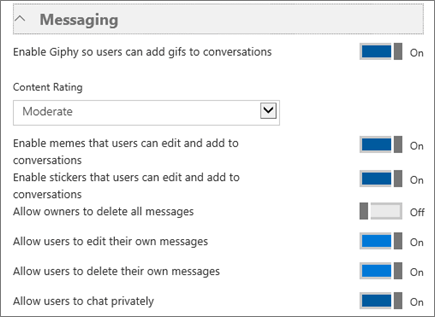
As a tenant admin, you can turn on or turn off media content such as animated images, memes, and stickers in the Messaging section of the Microsoft Teams settings page.

On the Microsoft Teams settings page, under Messaging, you can set a content rating and turn settings off or on to prevent or allow animated, Internet, and editable images.To turn on or turn off animated images, click or tap the toggle switch next to Add fun animated images to the conversations, and then choose Save.
When animated images are turned on, you can apply a content rating to restrict the type of animated images that can be displayed in conversations. You can set the Content Rating to be one of the following:

  • Strict
  • Moderate
  • No restriction

To turn on or turn off custom memes, click or tap the toggle switch next to Add customisation images from the Internet, and then choose Save.

To turn on or turn off stickers, click or tap the toggle switch next to Add editable images to the conversations, and then choose Save.

Tabs

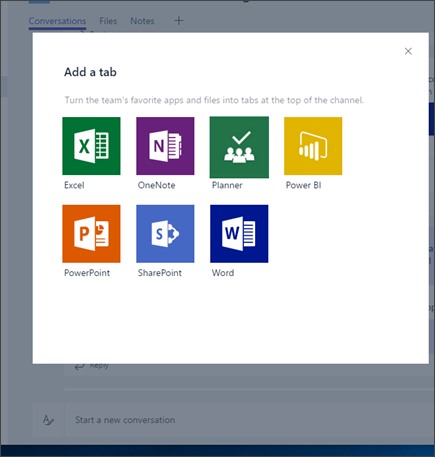
Tabs let you customise a channel to include content and capabilities your team needs every day. They provide quick access to frequently used documents and cloud services. In the preview release, there are several built-in tabs such as Files and Notes. In the Microsoft Teams client, at the top of the channel, users can add tabs for Word documents, PowerPoint presentations, Excel spreadsheets, OneNote notebooks, Power BI reports, and plans from Planner.

In the Microsoft Teams client, at the top of the channel, users can add tabs for favorite apps and files by using the Tabs gallery.Over time, more tabs will be added, both from Microsoft and from partners. Team owners can also side-load tabs so they appear in the Tab gallery for that team. And developers who create line-of-business (LOB) applications can also use the side-load capability to test their applications in test teams that they create.

To turn on or turn off support for tabs from partners and support for side-loading of applications, in the Tabs section of the Microsoft Teams settings page, click or tap the toggle switch next to Enable extension tabs in Microsoft Teams, and then choose Save. Changing this setting does not turn off the built-in support for default tabs, including Microsoft Office files, OneNote, Microsoft Planner, and SharePoint document libraries.

On the Microsoft Teams settings page, under Tabs, you can turn the setting off or on to prevent or allow side-loaded tabs in the Tab gallery.For more information about building custom tabs or integrating an existing tool as a tab, see Getting started with tabs for Microsoft Teams (preview). Developers can also learn more from Office Dev Center – Microsoft Teams.
Bots

Microsoft Teams users can complete tasks such as querying information and performing commands by using bots. You can also integrate your existing LOB applications with Microsoft Teams by using a bot.

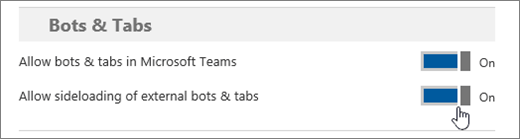
To turn on or turn off any built-in bots, in the Bots section of the Microsoft Teams settings page, click or tap to switch the toggle next to Enable bots in Microsoft Teams to help users complete more tasks easily, and then choose Save. Changing this setting does not turn off the availability of T-Bot, the built-in help bot.

To prevent or allow side-loading of proprietary bots, click or tap to switch the toggle next to Enable side loading of external Bots, and then choose Save.

On the Microsoft Teams settings page, under Bots, you can turn settings off or on to prevent or allow the use of built-in bots and side-loaded external bots.If you’re interested in building a bot, see Creating bots for Microsoft Teams (preview). It has step-by-step instructions for getting started with writing bots for Microsoft Teams. Developers can also learn more from Office Dev Center – Microsoft Teams.

NOTE: For developers to be able to test bots in Microsoft Teams, you must turn on bots.

Connectors

Office 365 Connectors allow your Microsoft Teams users to receive updates from popular services such as Twitter, Trello, Wunderlist, GitHub, and VSTS, within the chat stream in their team.

Connectors also provide a way for developers to integrate with Microsoft Teams by building custom connectors to generate rich cards within channels. See Getting started with Office 365 Connectors for Microsoft Teams (preview) and Connect apps to your groups for more information. Developers can also learn more from Office Dev Center – Microsoft Teams.

Client distribution

The installers for the Microsoft Teams Windows and Mac desktop clients can be downloaded from https://teams.microsoft.com/downloads. End users on desktops can install the application if they have the appropriate permissions. Admins can also download the installer and distribute it through client distribution tools.

End users who are using mobile devices can download the Microsoft Teams app from their mobile platform’s app store.Microsoft Teams is available on Windows (Windows 7 and later) and Mac desktop (Mac 10.10 and later). It is also available on iOS v9 and later (iPhone and iPad), Android 4.4 and later, and Windows Phone 10.0.10586 and later. Microsoft Teams is not available via a mobile web browser – it is available only through the mobile app.

Microsoft Teams supports the web client on Microsoft Edge 12+, Internet Explorer 11+, Firefox 47.0+, and Chrome 51.0+. Users who try to open the Microsoft Teams web client on Safari are directed to download the desktop client. Support for Safari is coming at a later date.

Turn on or turn off Microsoft Teams licenses

As an Office 365 administrator, you can manage user access to Microsoft Teams licenses in the Office 365 admin center. You must be an Office 365 global administrator or user management administrator to manage Microsoft Teams licenses.

To keep a user in your organization from accessing Microsoft Teams, remove the Microsoft Teams license for that user. After you turn off a license, that user can’t sign in to Microsoft Teams.

You assign Microsoft Teams licenses the same way you assign any other Office 365 Enterprise license. Sign in to Office 365, go to the Office 365 admin center and, on the Users > Active Users page, assign or remove the Microsoft Teams license. See Assign or remove licenses for Office 365 for business for more information.

If you’d rather use PowerShell, see Assign licenses to user accounts with Office 365 PowerShell or Remove licenses from user accounts with office 365 PowerShell.

Microsoft Teams URLs and IP address ranges

If your organization restricts computers on your network from connecting to the Internet, refer to Office 365 URLs and IP address ranges. This article lists the endpoints that you should include in your outbound allow lists and the Internet Explorer Trusted Sites Zone of client computers to make sure computers in your organization can successfully use Microsoft Teams in Office 365.

Things To Know About The New Microsoft Teams

Microsoft unveiled Microsoft Teams at an event in New York back in November 2016. This is an Office 365 component that adds a group chat tool to the pre existing office suite.

Teams is a competitor to Slack. This web-based software pulls together messaging, archived content and search capabilities.

Microsoft CEO Satya Nadella described it as a “chat-based workspace” – so Teams combines informal chatting and productive collaboration. The app combines the online Office applications, Skype, Exchange servers, Azure, security and more, all in one piece of software.

It’s a lot like Slack

When viewing demos or screenshots of Microsoft Teams, you could be forgiven for confusing it with a new version of Slack. The user interfaces look extremely similar, and it uses the same general “channels” and individual/small group chat design language.

It’s a free add-on for Office 365 enterprise subscribers

Teams isn’t exactly free, but if your organization is already an Office 365 subscriber it won’t cost anything additional. Of course, that doesn’t mean it’ll just pop up on your desktop the day it launches. Like any Office component, it’ll be up to your company’s IT department whether or not to deploy it to users in the organisation.

Teams brings together the following 3 components that are essential in any collaborative effort:

Chat

Microsoft Teams is, at its base, a chat-centered team workspace that’s easy to set up. Once your team is on board (and you can have multiple, different teams), you’ll have different channels within the teams for specific conversation topics. What’s more, you can even chat with members individually. Not only can you like posts, mention people, reply directly to posts, and even save posts, you can also post in rich text formats (including subject lines, bullet points, images, etc.). The addition of emoticons, gifs, and stickers make this platform a friendly, informal way for teams to chat. It makes it a much more personal and enjoyable experience than having a bland email chain.

Files

Teams is based on Office 365 Groups. Every time you make a team, it syncs and creates a group in SharePoint Team Sites. This allows Microsoft Teams to easily integrate to OneNote, Planner, Exchange Calendar, and all sorts of files to make sharing within your team the simplest it can be. Let’s say you share a file in a channel with your team. That file will automatically be uploaded to a folder specific to that channel. The folder contains all the uploaded files of that channel, and can easily be found in Teams for later use.

Meetings

With the simple click of a button, within the chat itself, you and your team can have an audio or video meeting. Not only can you schedule these meetings, you can make them happen with no preparation by clicking the button, and having whoever is available join. Since Teams is a flexible app, you can just as easily do this from your desktop or your mobile. You and your teammates can easily share notes and files during the meeting as well. Once the meeting is over, you can find a record of it saved in the chat history for future reference.

Now that you have read all of this, lets have a look in the video below:

https://youtu.be/nKU-FMzZFF0


Sharing files & folders in SharePoint & OneDrive

This is a first post in a while, hopefully I will be posting more content as the year goes on focusing on Office 365 and Azure.

For now, as more and more people move over to SharePoint i get asked how can I share my content with people who don’t necessarily work in my organisation, so hopefully the steps below will help answer this question.

Sharing files and folders in SharePoint Online / OneDrive Online couldn’t be easier. The process is similar in both products so from this point on, I will refer to both products as ‘OneDrive’.

Here’s a few key features of File Sharing in OneDrive;

  • Share files within your organisation and external users
  • Control who can view or edit the shared files
  • Work together in real time (also referred to as Co-Authoring)

File Sharing

  1. Go to OneDrive for Business or the site library that has the file you want to share.

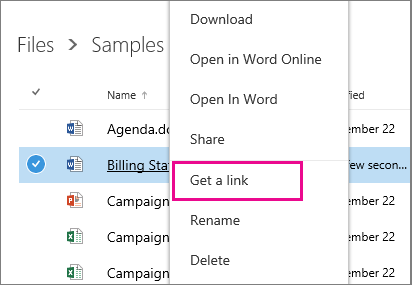
  2. Right-click the file you want to share, and then select Get a link. If you don’t see Get a link, click Share, and then click Get a link.

    Screenshot of Sharing a document by using Get a link

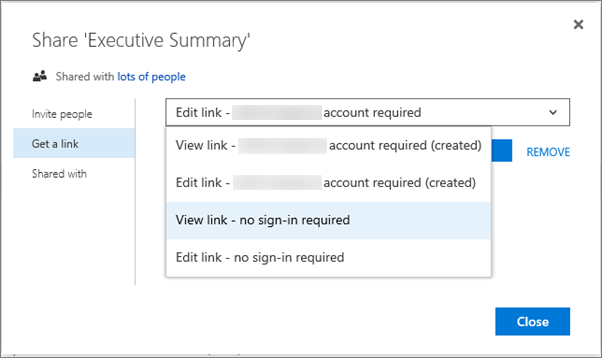
Choose the type of link you want to create.

Screenshot of choosing a link

Links for internal sharing:

  • Edit link – account required After they sign in, people in your organization can edit, copy, or download the file.

  • View link – account required After they sign in, people in your organization can view, copy, or download the file.

Guest links:

  • Edit link – no sign-in required People outside your organization can edit the file and may also be able to copy and download the file. People may need to sign in with a Microsoft account to copy or download the file.

  • View link – no sign-in required People outside your organization can view the file and may also be able to copy and download the file. People may need to sign in with a Microsoft account to copy or download the file.

  1. If guest access is disabled, you’ll see only account required options.

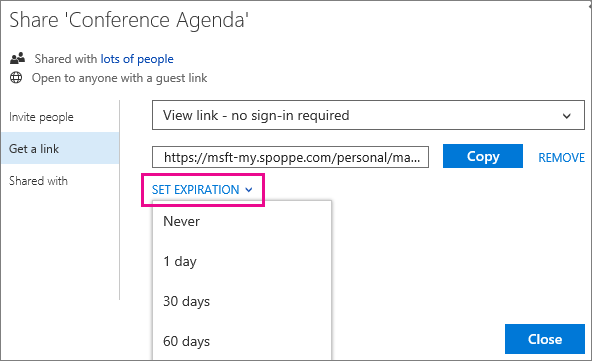
  2. If you choose a no sign-in required link and you want to set the link to expire, click Set expiration, and then choose how long before the link expires, such as 30 days. Account required links don’t expire and there’s no option to set an expiration for those links.

    Screenshot of Setting an Expiration for a guest link

  3. Click Copy to copy the link to the clipboard.

  4. Paste the link into an email and send it or post it on a website for the people you want share with.

I hope this was easy enough to follow, if you have any questions please drop me a line.

Exchange 2010–Office 365 Hybrid Setup – Remote Powershell

Recently I have been getting issues with performing a hybrid configuration from an on premise Exchange 2010 Server running the latest services packs and meeting all the required pre requisites to perform a Hybrid configuration to Office 365.

One of the first steps is to connect your on Premise exchange server to Office 365 using remote PowerShell, following the how to guide it tells you to connect to the following URI in the command below:

$session = new-pssession -configurationname microsoft.exchange -connectionuri https//ps.outlook.com/powershell/ -credential $o365cred -authentication basic

When you run this command you will get the following error:

ps.outlook.com] The WinRM service cannot process the request because the request needs to be sent to a different machine. Use the redirect information to send the request to a new machine. Redirect location reported: https://ps.outlook.com/PowerShell-LiveID?PSVersion=2.0 . To automatically connect to the redirected URI, verify “MaximumConnectionRedirectionCount” property of session preference variable “PSSessionOption” and use “AllowRedirection” parameter on the cmdlet.+ CategoryInfo : OpenError: (System.Manageme….RemoteRunspace:RemoteRunspace) [], PSRemotingTransportRed
irectException + FullyQualifiedErrorId : PSSessionOpenFailed

After speaking with Microsoft I have identified the URI has changed to https://outlook.office365.com/powershell-liveid/

and the Powershell command is slightly different to include the –AllowRedirection as there are multiple servers to connect to.

The command that worked for me was the following:

$Session = New-PSSession -ConfigurationName Microsoft.Exchange -ConnectionUri https://outlook.office365.com/powershell-liveid/ -Credential $UserCredential -Authentication Basic -AllowRedirection

Office 365 Credential Issues

If you’ve ever connected a workstation to Office 365 and then been constantly prompted for your credentials you know how frustrating it can be.  Have you ever checked that box in Outlook to “Remember Password” and then screamed in frustration as yet another logon prompt came up?

Below is a collection of sites that can help you troubleshoot issues logging into your Office 365 account.

SharePoint Online, Sharing Content With External Users

The ability to invite external users to the Team site is enabled by default, so site owners and site collection administrators can share the Team site or any of its subsites with external users at any time. However, if you are the Office 365 admin, you can choose to disable the feature for all sites so that no future invitations can be sent. When this feature is deactivated, any external user currently invited to sites will no longer be able to access the sites.

Enabling external sharing is not the same thing as enabling anonymous access. When external sharing is enabled, users must be authenticated (by signing in) before they can access internal resources.

  1. Go to Admin > Service Settings > sites and document sharing.
  2. Do one of the following:
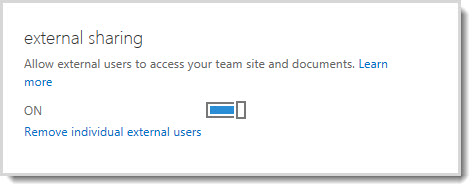
    • Turn on external sharing
    • Turn off external sharing

Image showing the on/off control for allowing external users access to your team site and documents.

SECURITY

  • When you deactivate external sharing, any external users who had access to the site at the time the feature was deactivated are denied access to the site and no future invitations can be sent. If the feature is reactivated with external user names in the SharePoint permissions groups, then those users will automatically be able to access the site again. To permanently prevent a user from accessing the SharePoint site, you can remove them from the list of external users.
  • If external sharing is turned off globally, any shared guest links will also stop working. If the feature is later reactivated, these links will resume working. It is also possible to disable individual links that have been shared if you want to permanently revoke access to a specific document.

Remove individual external users

If you need to remove external users so that they no longer have access to sites that have been shared with them, you can do so by removing them from the list of external users in Office 365 Service Settings.

  1. Go to Admin > Service Settings > sites and document sharing.
  2. Click Remove individual external users.
  3. Select the external users you want to remove, and then click Delete (the trash can icon).

Connect to Exchange Online using remote PowerShell

What do you need to know before you begin?

  • You can use the following versions of Windows:
    • Windows 8 or Windows 8.1
    • Windows Server 2012 or Windows Server 2012 R2
    • Windows 7 Service Pack 1 (SP1)*
    • Windows Server 2008 R2 SP1*

* You need to install the Microsoft .NET Framework 4.5 or 4.5.1 and then either the Windows Management Framework 3.0 or the Windows Management Framework 4.0. For more information, see Installing the .NET Framework 4.5, 4.5.1 and Windows Management Framework 3.0 or Windows Management Framework 4.0.

Connect to Exchange Online

  1. On your local computer, open Windows PowerShell and run the following command.
    $UserCredential = Get-Credential

    In the Windows PowerShell Credential Request dialog box, type your Exchange Online user name and password, and then click OK.

  2. Run the following command.

    $Session = New-PSSession -ConfigurationName Microsoft.Exchange -ConnectionUri https://outlook.office365.com/powershell-liveid/ -Credential $UserCredential -Authentication Basic -AllowRedirection

    Note   If you are an Office 365 operated by 21Vianet customer in China, use the following value for the ConnectionUri parameter: https://partner.outlook.cn/PowerShell.

  3. Run the following command.

    Import-PSSession $Session

NoteNote:

Be sure to disconnect the remote PowerShell session when you’re finished. If you close the Windows PowerShell window without disconnecting the session, you could use up all the remote PowerShell sessions available to you, and you’ll need to wait for the sessions to expire. To disconnect the remote PowerShell session, run the following command.

Remove-PSSession $Session

How do you know this worked?

After Step 3, the Exchange Online cmdlets are imported into your local Windows PowerShell session as tracked by a progress bar. If you don’t receive any errors, you connected successfully. A quick test is to run an Exchange Online cmdlet—for example, Get-Mailbox—and see the results.

If you receive errors, check the following requirements:

  • A common problem is an incorrect password. Run the three steps again and pay close attention to the user name and password you enter in Step 1.
  • To help prevent denial-of-service (DoS) attacks, you’re limited to three open remote PowerShell connections to your Exchange Online organization.
  • Windows PowerShell needs to be configured to run scripts. You only need to configure this setting once on your computer, not every time you connect. To enable Windows PowerShell to run signed scripts, run the following command in an elevated Windows PowerShell window (a Windows PowerShell window you opened by selecting Run as administrator).

    Set-ExecutionPolicy RemoteSigned
  • The account you use to connect to Exchange Online must be enabled for remote Shell. For more information, see Manage remote PowerShell access in Exchange Online.
  • TCP port 80 traffic needs to be open between your local computer and Exchange Online. It’s probably open, but it’s something to consider if your organization has a restrictive Internet access policy.

Step-By-Step: Creating a SQL Server 2012 AlwaysOn Availability Group

I recently found myself in a meeting discussing Clustering and High Availability Server platforms, and someone mentioned about an Always On Availability Group. This was new to me as I have not had experience of implementing a solution with this topology.

As soon as I had some spare time I did a little research and testing for myself, and I found the following article on Technet which I followed when setting up a SQL Server 2012 Always On Availability Group, below is a copy of that article:

One of the most talked about (and now frequently requested) feature in SQL Server 2012 is AlwaysOn Availability Groups. It brings SQL Server high availability and disaster recovery to a whole new level by allowing multiple copies of the database be highly available and potentially using them for read-only workloads and offloading management tasks such as backups. AlwaysOn Availability Groups allow you to fail over a group of databases as a single entity, unlike database mirroring where you can only do so one database at a time. This is very useful for applications that access multiple databases in a single SQL Server instance like SharePoint Server 2013. In fact, very recently, one of my customers had requested to configure SQL Server 2012 AlwaysOn Availability Groups for their SharePoint 2013 farm. I am also seeing more and more SharePoint 2013 farms leveraging on the SQL Server 2012 AlwaysOn Availability Groups for both high availability and disaster recovery.

This step-by-step has been created to help you get started in creating a SQL Server 2012 AlwaysOn Availability Group for your mission-critical databases.

Prerequisites

  • Windows Server Failover Cluster (WSFC). AlwaysOn Availability Groups rely on the Windows Server Failover Cluster for failure detection and management of the Availability Group replicas. This is where a lot of customers get confused because of their previous knowledge of Microsoft Cluster Services (MSCS.) In previous versions of Windows Server, you need shared storage to create a failover cluster for the quorum disk. Windows Server 2008 and higher provided the option to use a file share witness as a quorum configuration. Therefore, you DO NOT need shared storage to create a Windows Server Failover Cluster for AlwaysOn Availability Groups. This, of course, does not change the requirement if you intend to use a SQL Server Failover Clustered Instance (FCI) as a replica in your Availability Group. For this step-by-step, we will only be working with standalone SQL Server 2012 default instances.
  • Download SQL Server 2012 Enterprise Edition. AlwaysOn Availability Group is an Enterprise Edition feature. Before deciding to implement this feature, take stock of your SQL Server licenses to make sure you have enough to get you covered. If you intend to use the other replicas for read-only workloads or offloading your backups, you would need licenses for those SQL Server instances as well. This is also another one of those items that customers get confused with because in previous versions of SQL Server, database mirroring can be configured with Standard Edition.
  • Same SQL Server collation for all replicas. I usually don’t recommend running databases with different collation requirements in the same SQL Server instance due to potential issues caused by applications using temporary tables. This is one of the reasons for keeping the database collation the same for a single instance (SharePoint 2013 also requires a specific collation for the content databases.) If you want to configure AlwaysOn Availability Groups for your databases, they should all be running the same collation on all of the SQL Server instances acting as replicas.
  • Two to Five SQL Server Instances acting as replicas. SQL Server instances that will be used as a standby for high availability and/or disaster recovery are called replicas. Unlike database mirroring where you can only have one extra copy of the database, AlwaysOn Availability Groups allow you to have up to five copies of the database running on five replicas – three of which can be configured for synchronous-commit mode and two in asynchronous-commit mode.

Windows Failover Cluster Feature Installation

Since AlwaysOn Availability Groups require a Windows Server Failover Cluster, we first need to add the Windows Failover Cluster Feature to all the machines running the SQL Server instances that we will configure as replicas. For the operating system, we will be using Windows Server 2012. To add the Failover Clustering feature:

  1. Open the Server Manager console and select Add roles and features. This will launch the Add Roles Features Wizard
  1. Click Next until you reach the Select Features dialog box. Select the Failover Clustering checkbox. When prompted with the Add features that are required for Failover Clustering dialog box, clickAdd Features. Click Next.
  2. Click Install to install the Failover Clustering feature.

Windows Failover Clustering Configuration for SQL Server 2012 AlwaysOn Availability Groups

Prior to configuring the Windows Server Failover Cluster, it is assumed that you have the appropriate rights in Active Directory. For a complete listing of the different Active Directory permissions to create a Windows Server Failover Cluster, see Failover Cluster Step-by-Step Guide: Configuring Accounts in Active Directory. To configure Windows Failover Clustering,

  1. Launch Failover Cluster Manager from within the Server Manager console.
  2. Within Failover Cluster Manager, click the Validate Configuration… link.
  3. In the Validate a Configuration Wizard dialog box, click Next.
  4. In the Select Servers or a Cluster dialog box, add the server hostnames of the SQL Server instances that you want to configure as replicas in your Availability Group. Click Next.
  5. In the Testing Options dialog box, make sure that the option Run all tests (recommended) is selected. Click Next.
  6. In the Confirmation dialog box, click Next.
  7. In the Summary dialog box, click Finish to create the Windows Failover Cluster.
    NOTE: The Failover Cluster Validation Wizard is expected to return several Warning messages, especially if you will not be using shared storage. As we mentioned earlier, there is no need to use shared storage to create the Windows Server Failover Cluster that we will use for our Availability Group. Just be aware of these Warning messages as we will configure a file share witness for our cluster quorum configuration. However, if you see any Error messages, you need to fix those first prior to creating the Windows Server Failover Cluster.
  8. In the Access Point for Administering the Cluster dialog box, enter the virtual server name and virtual IP address of your Windows Server Failover Cluster.
  9. In the Confirmation dialog box, click Next. This will create the Windows Failover Cluster using the servers as nodes of the cluster, add DNS and Active Directory entries for the cluster hostname.
  10. In the Summary dialog box, verify that the configuration is successful.
  11. To configure the cluster quorum configuration to use a file share, right-click on the cluster name, selectMore Actions and click Configure Cluster Quorum Settings… We will be configuring a file share witness for our cluster quorum setting. By default, the wizard will configure the cluster to use Node Majority.
  12. Click Next.
  13. In the Select Quorum Configuration page, select the Add or change the quorum witness option. Click Next.
  14. In the Select Quorum Witness page, select the Configure a file share witness (recommended for special configuration) option. Click Next.
  15. In the Configure File Share Witness page, type path of the file share that you want to use in the File Share Path: text box. Click Next.
  16. In the Confirmation page, click Next.
  17. In the Summary page, click Finish.

Enable SQL Server 2012 AlwaysOn Availability Groups Feature

Once the Windows Server Failover Cluster has been created, we can now proceed with enabling the AlwaysOn Availability Groups feature in SQL Server 2012.  This needs to be done on all of the SQL Server instances that you will configure as replicas in your Availability Group. To enable the SQL Server 2012 AlwaysOn Availability Groups feature,

  1. Open SQL Server Configuration Manager. Double-click the SQLServer (MSSQLSERVER) service to open the Properties dialog box.
  2. In the Properties dialog box, select the AlwaysOn High Availability tab. Check the Enable AlwaysOn Availability Groups check box. This will prompt you to restart the SQL Server service. Click OK.
  3. Restart the SQL Server service.

Create and Configure SQL Server 2012 AlwaysOn Availability Groups

Availability Groups can be created on existing databases or even a temporary one in preparation for application installation. If you intend to create an Availability Group for a new SharePoint 2013 farm, you will need to create a temporary database. This is so that the SharePoint 2013 farm will use the AlwaysOn Availability Group when creating the farm configuration and the admin content databases. After the SharePoint 2013 farm has been created, this database can be removed from the Availability Group configuration and deleted from the instance.

To create and configure a SQL Server 2012 AlwaysOn Availability Group,

  1. Open SQL Server Management Studio. Connect to the SQL Server instance
  2. In Object Exporer, expand the AlwaysOn High Availability folder. Right-click on the Availability Groups folder and select the New Availability Group Wizard… option. This will launch the New Availability Group Wizard.

  3. In the Introduction page, click Next.
  4. In the Specify Availability Group Name page, enter the name of the Availability Group in theAvailability group name: field. Click Next.
  5. In the Select Databases page, select the checkbox beside the database that you want to include in your Availability Group. The databases have to be in Full recovery model prior to joining them in the Availability group. Click Next.
  6. In the Specify Replicas page, under the Replicas tab, click the Add Replicas button and connect to the other SQL Server instances that you joined as nodes in your Windows Server Failover Cluster. Configure the following options
    • Automatic Failover (Up to 2) :          Checked
    • Synchronous Commit (Up to 3) :      Checked
    • Readable Secondary:                      No
  7. In the Endpoints tab, verify that the port number value is 5022.
  8. In the Listener tab, select the Create an availability group listener option. Enter the following details.
    • Listener DNS name: Name that you will use in your application connection string
    • Port: 1433
  9. Click the Add… button to provide an IP address. In the Add IP Address dialog box, enter your preferred virtual IP address in the IPv4 Address field. Click OK. Click Next.
  10. In the Select Initial Data Synchronization page, select the Full option. Provide a shared folder that is accessible the replicas and that the SQL Server service account used by both replicas has Writepermissions to. This is just a temporary file share to store the database backups that will be used to initialize the databases in an Availability group. If you are dealing with large databases, it is recommended that you manually initialize the databases prior to configuring them as your network bandwidth may not be able to accommodate the size of the database backups. Click Next.
  11. In the Validation page, verify that all validation checks return successful results. Click Next.
  12. In the Summary page, verify all configuration settings and click Finish. This will create and configure the AlwaysOn Availability Group and join the databases.
  13. In the Results page, verify that all tasks have been completed successfully.

Congratulations! You have just created a SQL Server 2012 AlwaysOn Availability Groups. You can now use the Availability Groups listener name in your application connection string. Keep in mind that you need to manually add new databases in the Availability Group even though your application has already been using the listener name. So, be sure to monitor the replicas in your Availability Groups to be alerted when new databases are created.