Microsoft Blocking Old Email from Exchange Servers

Microsoft has recently announced that it will be stopping older Exchange versions from sending mail through Exchange Online. This is a significant move that will impact organisations that still use older versions of Exchange.

Exchange Online provides enterprise-grade security and reliability, ensuring that users’ data is always protected.

Microsoft is stopping older Exchange versions from sending mail through Exchange Online to improve the security and reliability of the service. Older versions of Exchange may not have the latest security updates or features, making them more vulnerable to cyber threats. This puts users’ data at risk, which is why Microsoft is taking this step to protect its customers.

Microsoft will be stopping the following versions of Exchange from sending mail through Exchange Online:

  • Exchange 2010
  • Exchange 2013
  • Exchange 2016 without Cumulative Update 23 or later
  • Exchange 2019 without Cumulative Update 12 or later

Organisations that are still using older versions of Exchange will need to upgrade to a newer version or move to Exchange Online to continue using the service. This may require significant effort and resources, depending on the size of the organization and the complexity of the email system.

However, upgrading to a newer version of Exchange or moving to Exchange Online has several benefits. It provides better security and reliability, ensures that users have access to the latest features, and enables organisations to take advantage of the latest cloud-based technologies.

In addition to upgrading to the latest version of Exchange, organisations should also take other steps to improve their overall security posture. This includes implementing strong password policies, using multi-factor authentication, regularly backing up data, and training employees on how to recognise and report suspicious activity.

Adding an Exchange Edge Transport Server to a Exchange Online Hybrid Solution

I have been recently doing some work for a local council where they require a migration strategy to move away from an ageing on premise Exchange 2010 and 2016 environment. The environment is currently hosted in a secure infrastructure managed by a large 3rd party who have put in place many security functions such as F5 proxies, numerous firewalls to protect the councils data. The main challenge here was to enable mail flow from the EOL services to EOP. One key factor into this solution is that Microsoft specify the following:

We must not place any servers, services, or devices that process or modify SMTP traffic (Filtering / Packet inspection) between the on-premises Exchange servers and Microsoft 365 or Office 365. Secure mail flow between the on-premises Exchange organisation and Microsoft 365 or Office 365 depends on information contained in messages sent between the organisations. Firewalls that allow SMTP traffic on TCP port 25 through without modification are supported. If a server, service, or device processes a message sent between your on-premises Exchange organisation and Microsoft 365 or Office 365, this information is removed. If this happens, the message will no longer be considered internal to the organisation and will be subject to anti-spam filtering, transport and journal rules, and other policies that may not apply to it. 

With the above in mind we had to implement a solution that would not impact current mail flow and provide a solution to connect the EOP to EOL for just hybrid mail flow. To do this we implemented a Microsoft Exchange 2016 Edge Transport Server in the parimeter network and NAT the SMTP traffic through the firewall to the Exchange Mailbox Server in the internal network. The following explains the configuration to get this to work:

Exchange Edge Transport Network Diagram

Network ports required for mail flow with Edge Transport Server

PurposePortsSourceDestination
Inbound mail – Internet to Edge Transport server25/TCP (SMTP)Internet (M365 Service IPs / URLS)https://technet.microsoft.com/en-us/library/dn163583(v=exchg.150).aspxEdge Transport server
Inbound mail – Edge Transport server to internal Exchange organization25/TCP (SMTP)Edge Transport serverMailbox servers in the subscribed Active Directory site
Outbound mail – Internal Exchange organization to Edge Transport server25/TCP (SMTP)Mailbox servers in the subscribed Active Directory siteEdge Transport server
Outbound mail – Edge Transport server to internet25/TCP (SMTP)Edge Transport serverInternet (any)
EdgeSync synchronization50636/TCP (secure LDAP)Mailbox servers in the subscribed Active Directory site that participate in EdgeSync synchronizationEdge Transport servers
DNS for name resolution of the next mail hop*53/UDP,53/TCP (DNS)Edge Transport serverDNS server

Mail flow with Edge Transport Server

The following process describes the path messages take between an on-premises organisation and Exchange Online when the Edge Transport server is deployed. 

Messages from the on-premises organisation to recipients in the Exchange Online organization are sent from the internal Exchange server:

  1. Messages from the on-premises organisation to recipients in the Exchange Online organisation are sent from a mailbox on an internal Exchange server.
  2. The Exchange server sends the message to an Edge Transport server running a supported version and release of Exchange.
  3. The Edge Transport server sends the message to EOP.
  4. EOP delivers the message to the Exchange Online organization.

Messages sent from the Exchange Online organisation to recipients in the on-premises organisation follow the reverse route.

Build Exchange Edge Transport Server

Rather than me mapping out the steps for deploying the Transport Server role, the following video goes into great detail as to how you deploy it.

  • Install Pre Reqs
    • .NET Framework 4.7.1
    • Visual C++ Redistributable Package for Visual Studio 2012
    • Install-WindowsFeature ADLDS
    • Add DNS Suffix to the Hostname of server
    • Manually add the DNS record of the non domaines joined server used for Edge
    • Export Exchange Certificate from Exisiting

Configure Edge Subscription

Like the previous video, this one goes in to great detail as to how to configure the Edge Synchronisation and tests to ensure that the syncs are working as they should.

Publish Exchange SMTP Externally

  • Modify External DNS record for Exchange 2016
    • A Record: edge.domain.name to reference new Perimeter network External IP 
  • Request firewall rules creation
    • Create associated Access Rule for Exchange SMTP
      • Destination: Exchange 2016 server
      • Protocol: SMTP (tcp/25) (bidirectional)
      • <Create Reverse Rule if SMTP blocked outbound by default>
      • Create rull to allow Transport Server to forward to Exchange Server on production LAN

Hopefully this has solved your problems when you have a requirement for a hybrid exchange deployment in a secure infrastructure.

OneDrive for Business Known Folder Moves without GPO

onedrive

I thought I would write a post about something different. I am working on a project to move users Documents, Desktop and Pictures to OneDrive for business but this is simple you may say, you just configure a GPO to redirect these known folders. What about when you cannot get to the office? At this current time everyone is on lockdown and we are being told to work from home or you may have users that never need to go to the office and are using their own device. Either way we can configure user’s devices to sync data to OneDrive without GPOs. See how to do it below.

We use a PowerShell script and execute it on the remote devices. This can be done either manually as an administrator or using an RMM tool. In this case we used Datto.

First of all we need to get the Microsoft 365 Tenant ID – here is some PowerShell you can use to gather this information: – you will need to know the Tenant Global Admin credentials for this to work:

Install-Module AzureAD -Scope CurrentUser -Force
Import-Module AzureAD -Force 
$login = Connect-AzureAD
$tentantid =($login.TenantId.Guid)
Disconnect-AzureAD
$tentantid

Copy and Paste the Tenant ID into the script below:
$path = "HKLM:\SOFTWARE\Policies\Microsoft\"
$onedrivepath = "HKLM:\SOFTWARE\Policies\Microsoft\OneDrive"
$tentantid = "8edaf648-****-****-****-************"
New-Item -Path "$path" -Name OneDrive -Force
#New-ItemProperty -Path "$onedrivepath" -Name "KFMOptInWithWizard" -Value
 "$tentantid" -Force
New-ItemProperty -Path "$onedrivepath" -Name "KFMSilentOptin" -Value 
"$tentantid" -Force
New-ItemProperty -Path "$onedrivepath" -Name "KFMSilentOptinWithNotification" 
-Value "1" -PropertyType DWORD -Force
New-ItemProperty -Path "$onedrivepath" -Name "FilesOnDemandEnabled" -Value "1" 
-propertytype DWORD -force
Restart-Computer -Force


Below is a table detailing what the Item Properties actually do:

Item Property Details
KFMSilentOptin This setting redirects users’ Documents, Pictures, and Desktop folders to OneDrive without any user interaction. This setting is available in the OneDrive sync app build 18.111.0603.0004 or later. Before sync app build 18.171.0823.0001, this setting redirected only empty known folders to OneDrive. Now, it redirects known folders that contain content and moves the content to OneDrive.
KFMSilentOptinWithNotification This setting displays a notification to users after their folders have been redirected.

kfmnotification

FilesOnDemandEnabled This setting lets you control whether OneDrive Files On-Demand is enabled for your organization. Files On-Demand helps you save storage space on your users’ computers and minimize the network impact of sync. The feature is available to users running Windows 10 Fall Creators update (version 1709 or later).

File contents don’t download until a file is opened.

You will notice that on of the lines in the script is # out  You could use this line instead of the KFMSilentOptin.

KFMOptInWithWizard If you enable this setting and provide your organization ID, users who are syncing their OneDrive see the following window when they’re signed in. If they close the window, a reminder notification appears in the Activity Center until they move all their known folders. If a user has already redirected their known folders to a different OneDrive account, they are prompted to direct the folders to the account for your organization (leaving existing files behind).


protect-important-folders-gpo

Tenant organization is dehydrated

Office365

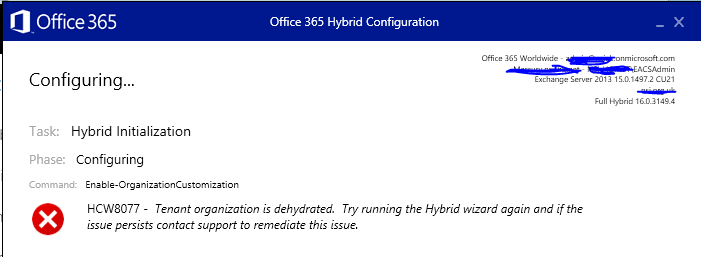
Working on a new migration project today and have come accross this error message. I have done hundreds of migrations and this is the first time I have seen this error:

tenentdehydration

The reason the above error occurred is because the tenant is currently in a compressed state.  This is called dehydrated or tiny tenant mode.

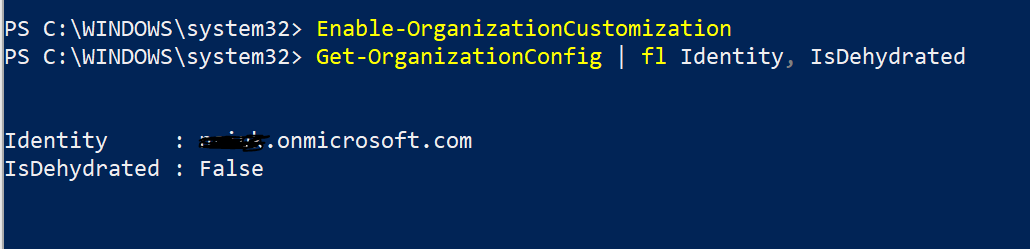
Connect to O365 in powershell and run the following command:

get-orgconf

When you try to use Windows PowerShell (My case the HCW) to modify one of these dehydrated objects for the first time, you may encounter an error message that tells you to run the Enable-OrganizationCustomization cmdlet.

getorgfixed

Here are some examples of when you might see this:

  • Creating a new role group or creating a new management role assignment.

  • Creating a new role assignment policy or modifying a built-in role assignment policy.

  • Creating a new Outlook Web App mailbox policy or modifying a built-in Outlook Web App mailbox policy.

  • Creating a new sharing policy or modifying a built-in sharing policy.

  • Creating a new retention policy or modifying a built-in retention policy.

I have not seen the error before, as normally the Hybrid configuration Wizard inflates the tenant for you.

Once I manually updated the Tenant I re ran the HCW and this time success.

hybrid complete_LI

Office 365 Report / Auditing

Office365

Office 365 is continually evolving, expanding and improving – meaning new capabilities and opportunities, alongside the need to support adoption and manage change on an ongoing basis. Over the years I have been asked to do lots of On Premise current state assesments to help customers plan and check to ensure that their infrastructure is running optimally and meets current, and future, requirements. Recently however I have noticed an incline in requests from customers who want the same current state assesment for Office 365.

Whilst doing a bit of googling to see if there were any reporting tools that could ensure I capture key information on our customers tenant I was amazed at what I found, the following tool can be downloaded for FREE from Microsoft Technet and it ticks all the boxes:

To get your copy of the tool follow the link here: https://gallery.technet.microsoft.com/office/Office-365-Reporting-Tool-7987b4c2

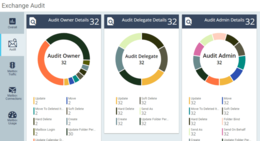
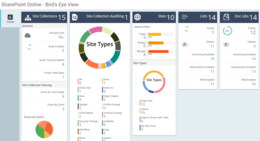
Below are some screenshot from within the reporting tool:azure-overall-dashboard exchange-audit-overall-dashboard

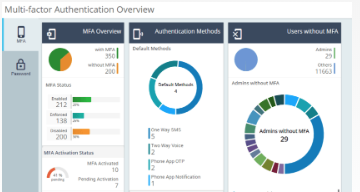
sharepoint-overall-dashboardAdminDroid MFA Dashboard

What Can the Tool Do?

The tool provides detail reports on the following areas of Office 365

  • Azure Active Directory (43 reports)
  • Security Reports (22 Reports)
  • Exchange Online (99 reports)
  • SharePoint Online (35 reports)
  • OneDrive for Business  (11 reports)
  • Skype for Business (22 reports)
  • Yammer (20 reports)
  • Microsoft Teams (16 reports)
  • General Office 365 Reports (9 reports)

Reporting Capabilities Highlights

This Office 365 Reporting tool comes with advanced reporting capabilities which make tedious reporting task to an easier one.
  • Automatic Schedule –  Schedule one or more reports to run automatically at the configured time and delivered straight to your preferred mail-ids.
  • Rich Filters – Apply filter on any columns to see only the required information and save the filter for future use.
  • Easy Customization – Allow you to easily customize the reports by rearranging, adding or removing the columns and its size.
  • Report Export – Ability to export the reports to CSV, PDF, HTML, XLS or XLSX.


For me this tool will help me put together usefull documentation that we can present to customers and hopefully help plan a way forward with something that customers have aready invested in, I believe this FREE tool will help customers decide on a stratagy to develop their Office 365 utilisation for the better.

Do I need to backup Office 365?

Office365

As a consultant I visit many different businesses with different solution requirements, but there is one question I get asked a lot and that is, Do I still need to ensure that my data in Office 365 is backed up?

There is a widespread misconception that data created and stored in the cloud does not need to be backed up. When data is deleted or corrupted, companies face three major problems: Lost data, lost time and lost revenue.

Data loss is often a major concern for Office 365 customers because Microsoft’s backup policies cannot guarantee a complete and speedy restore of lost data. Even when data is retrievable, the process is long and complicated, and retention policies vary for each application included in the cloud platform.

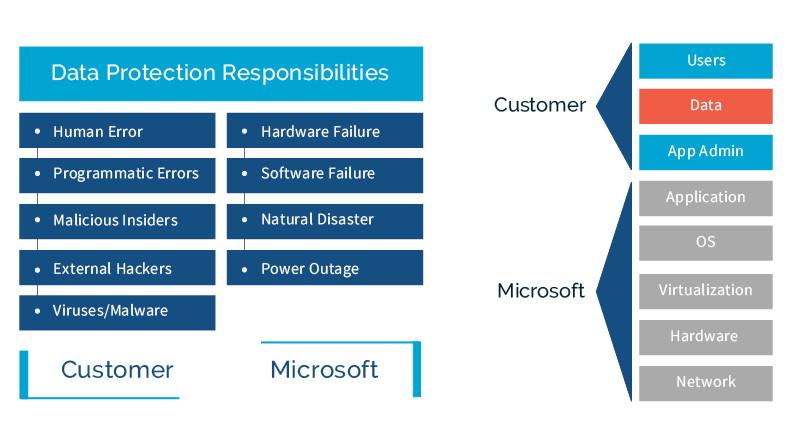
Below is an image that should hopefully help you identify who is responsible for the different aspects of Office 365

o365 backuo

Reasons to use a third party backup provider

Ransomware attacks

Companies need to consider a multi-layered approach when it comes to security against cyber-attacks. Office 365 data is not invulnerable—without sufficient backup, companies stand to risk losing all of their files. -The WannaCry Virus is a prime example of this, we had numerous customers who’s data got encrypted and then synchronised to OneDrive, the only way around this was using 3rd party tools we already had in place protecting the businesses data. – if we did not then the data that was encrypted would have been lost.

Additional costs & data loss due to inactive licenses

As one would expect, an active Office 365 license is required to access O365 data. Unfortunately inactive or deprovisioned user data is permanently deleted, and retaining licenses of departed employees can be expensive.

Data loss due to Permanent deletion

When a SharePoint Online administrator deletes a site collection, all data will be placed in the Recycle Bin where it is deleted after 90 days. After it is automatically deleted, there is no rollback option.

Data loss when Restoring files

When restoring older files from a SharePoint backup, the restore is targeted at the same URL. This means a restore overwrites whatever data currently exists in the site collection – not the individual file or folder.

Business downtime

Contacting Microsoft Support for assistance with possible data loss after identifying the proper document version can be very time consuming.

Depending on the size of your business there are a number of Cloud backup solutions that are available to you, ones that I have used previously are:

backupify

Datto Backupify: https://www.backupify.com/ 

cloudally

Cloud Ally: https://www.cloudally.com/

I know that there are solutions from Veeam and NetAPP as below:

netapp

NetAPP Software as a Service Backup: https://www.netapp.com/us/products/cloud-storage/saas-backup.aspx

veeam

Veeam: https://go.veeam.com/backup-office-365


For security reasons DTD is prohibited in this XML document

sharepoint

I am working on a large data migration project at the moment working with SharePoint Online and just had to share this issue.. it kinda got me stumped for a while…

Using SharePoint Online Management Shell I got the following error:

pshellerror

Now the error sent me off looking at my O365 permissions, I am a global admin for the tenant. I am basically trying to configure user interpretation so I can move users OneDrive data out to another tenant, so I have also checked permissions for eDiscovery etc. But thinking about it all I am trying to do at this stage is connect to the SharePoint Admin site.. and it is giving me this error.. This is odd, I have done this loads of times before…

After about an hour of banging my head against a brick wall, I managed to resolve the problem. The solution was simple, I changed my DNS servers on my client machine to point to Google DNS (8.8.8.8 and 8.8.4.4) and that was it. – it turns out the error is actually my ISP trying to offer a “DNS Help” page which is omitting the error.

Here are my findings when trying to sort out this issue that may help to explain why it happened in the first place.

  1. http://asp.net-hacker.rocks/2016/01/15/XML-parsing-problem-because-of-your-ISP.html
  2. https://stackoverflow.com/questions/13854068/dtd-prohibited-in-xml-document-exception
  3. https://blogs.technet.microsoft.com/marios_mo_betta_blog/2016/06/05/o365-powershell-error-dtd-is-prohibited-in-this-xml-document/

The 3rd option did it for me as I use Virgin Media, so thought well if I use Googles DNS this may resolve my problem.. and it did.


Exchange Online Delegation Rights

exchange-online

Managing Exchange Calendars with PowerShell.

Some companies I deployed Exchange or Office 365 would like to be able to view readable information in everyone’s calendar by default you only get Free or Busy information. The following script changes the default calendar permissions for ALL Users folders to Reviewer – This gives you readable / not editable information.

foreach($user in Get-Mailbox  -RecipientTypeDetails UserMailbox) {
$cal = $user.alias+":\Calendar"
Set-MailboxFolderPermission -Identity $cal -User Default -AccessRights Reviewer
}

Senior management sometimes have PA’s that will need delegate access to their calendar, this this will include view calendar items that are marked as private.

To Set the delegate to view private items in the calendar

Add-MailboxFolderPermission –Identity <delegates mailbox>:\Calendar 
–User <delegated mailbox> -AccessRights Editor -SharingPermissionFlags 
Delegate,CanViewPrivateItems

To Set the delegate to not view private items in the calendar

Add-MailboxFolderPermission -Identity <delegates mailbox>:\Calendar 
-User <delegated mailbox> -AccessRights Editor -SharingPermissionFlags 
Delegate

To remove any individual calendar permission

Remove-MailboxFolderPermission -Identity "delegates mailbox:\Calendar" 
-user "delegated mailbox"