What are Sensitivity Labels?
Sensitivity labels are used to classify email messages, documents, sites, and more. When a label is applied (automatically or by the user), the content or site is protected based on the settings you choose. For example, you can create labels that encrypt files, add content marking, and control user access to specific sites.
Once we created the label policies we started to do some testing and noticed the following bounce message when we applied labels to emails:
Remote Server returned ‘550-5.7.162 OmeEncryptionAgent; Permanent Failure 550-5.7.162 Exception encountered: RmException. 550-5.7.162 Exception message: Failed to get template. Template:96be504d-7520-4645-8f23-06d0b61f9235. FailureCode:UnknownFailure. Recoverable:False.. 550 5.7.162 Please contact your system administrator for more information.’
After some research we identified that the labels had not been published as below:

The issue is caused by because the has not been a syncronisation between the Lables and Azure RMS. The following is a guide to forcing a syncronisation using PowerShell connecting to the AIP service:
1, Run the following command to install powershell module for the AIP Service:
Install-Module AIPService2, Run the following command to enable the AIP service module:
Import-Module AIPService3, Run the following command to connect to the AIP Service
Connect-AIPServiceWe then need to list all of the labels to see what the status is as below:
Get-AipServiceTemplate | FL name*, TemplateId , Status
All of the labels highlighted above as Archived have not yet sync’d to the Azure RMS service so the next command will force the label to sync, this will need to be done on each individual label as follows:
Set-AipServiceTemplateProperty -TemplateID "TemplateID" -Status PublishedSo an example below

Once you have ran the command you will notice that all label status’s will change to Published – we found that once the above process hads been completed the label can be applied and emailed successfully.


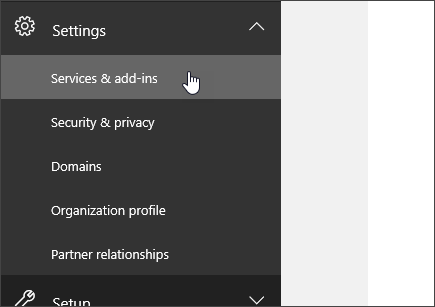
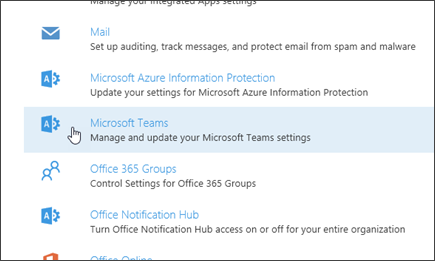
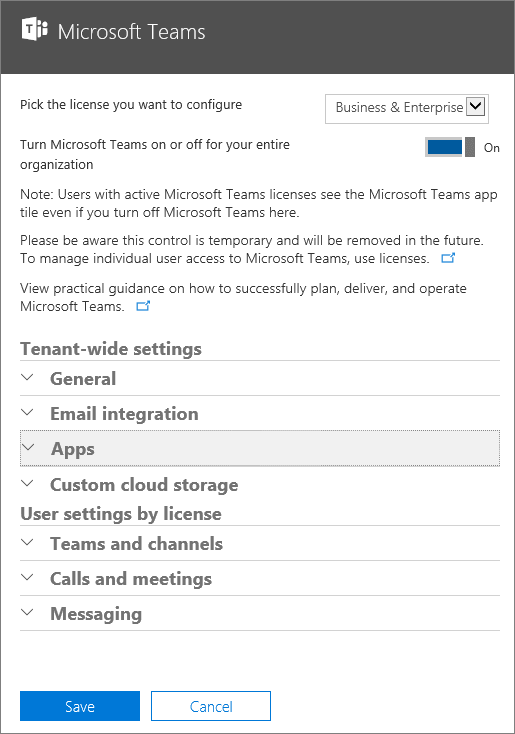

 For more information about managing Office 365 Groups, see
 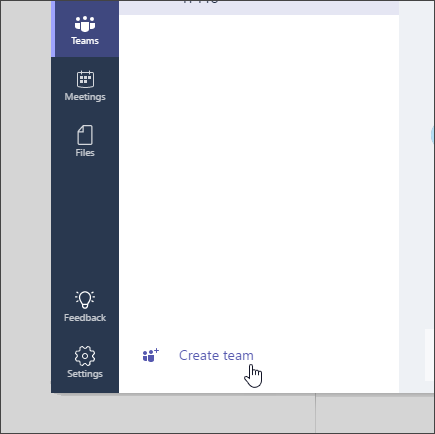 As an admin, you can control which users in your organization can create teams in Microsoft Teams. The same creation settings defined by Office 365 Groups apply to Microsoft Teams. By default, every user has the ability to create a team or group. For more information, see
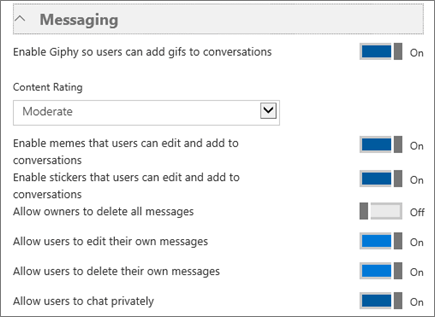 To turn on or turn off animated images, click or tap the toggle switch next to Add fun animated images to the conversations, and then choose Save.
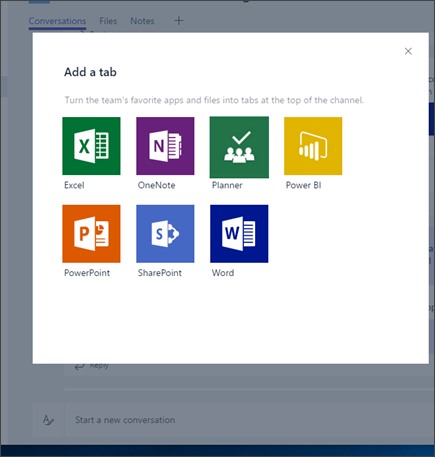 Over time, more tabs will be added, both from Microsoft and from partners. Team owners can also side-load tabs so they appear in the Tab gallery for that team. And developers who create line-of-business (LOB) applications can also use the side-load capability to test their applications in test teams that they create.
 For more information about building custom tabs or integrating an existing tool as a tab, see
 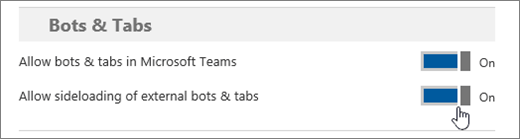 If you’re interested in building a bot, see
 Malcolm Plested IT Blogs